 Memorate
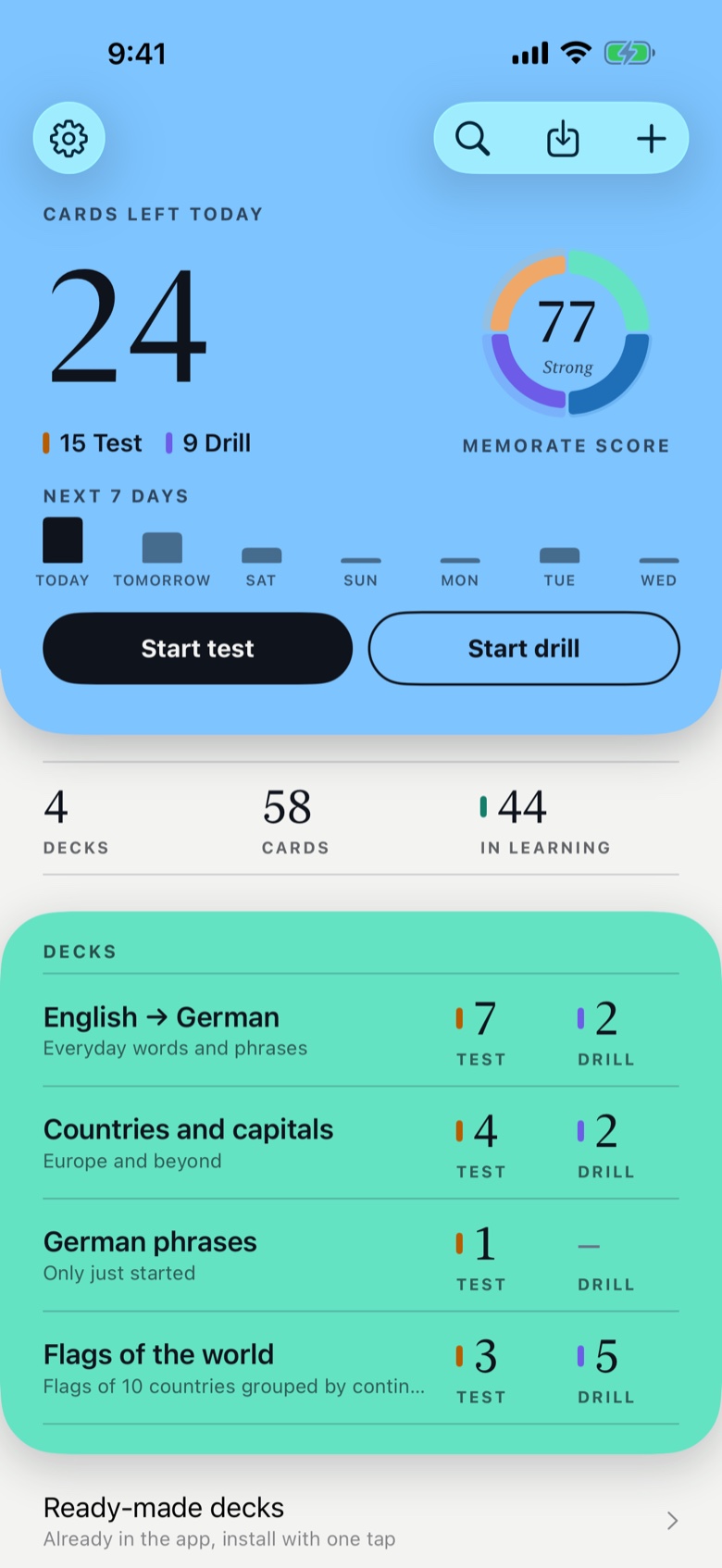
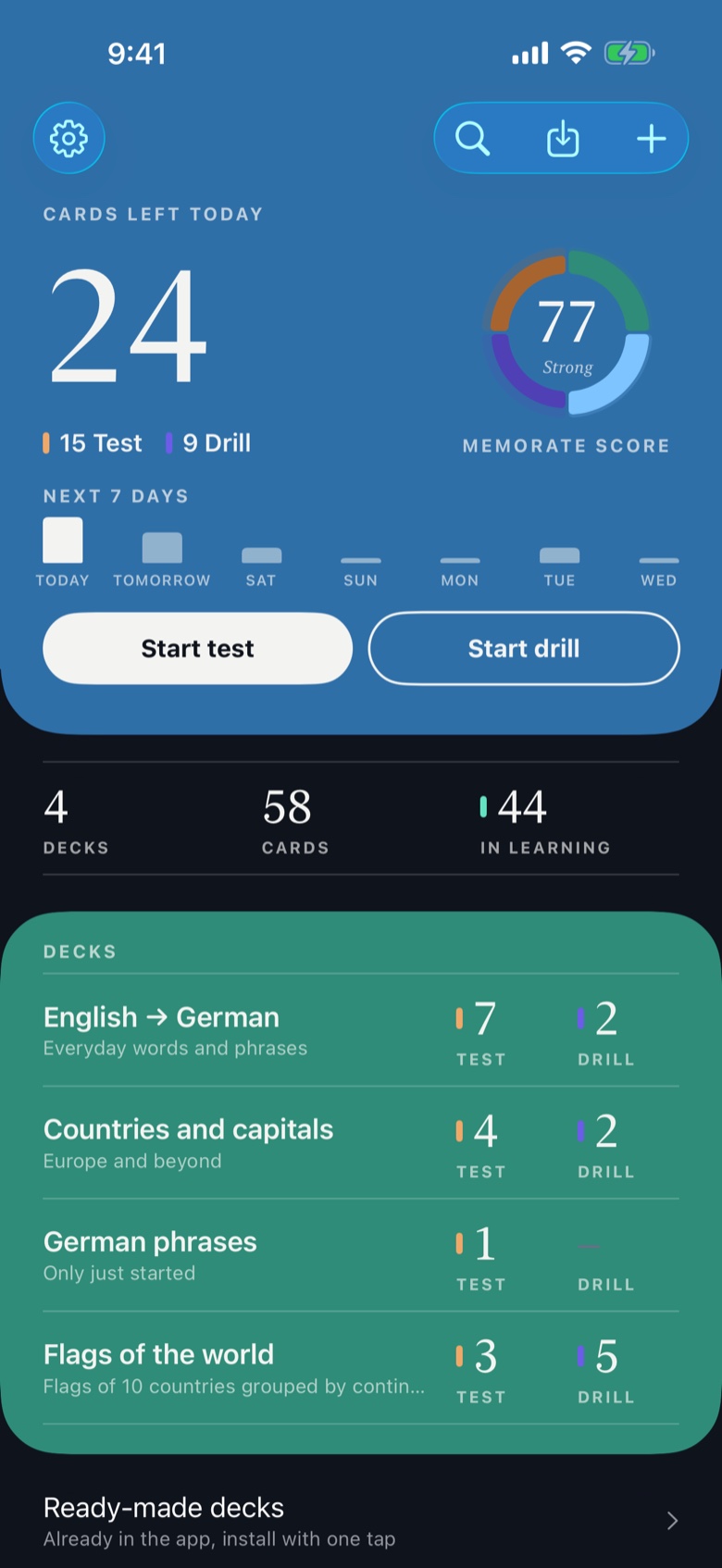
After installing, Memorate is empty. There are no sample decks you have to delete.
1. Get some cards
You have four options and all of them end up in the same place.
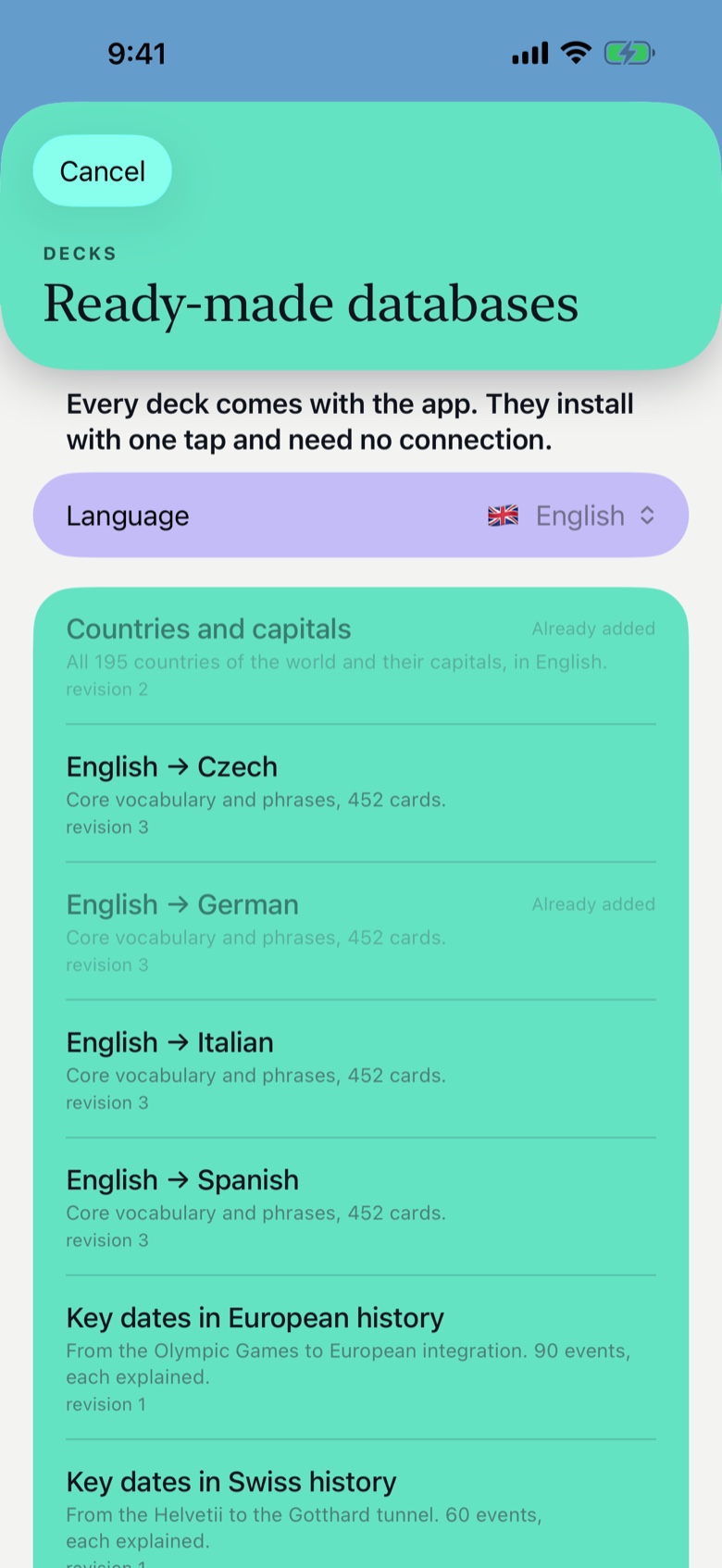
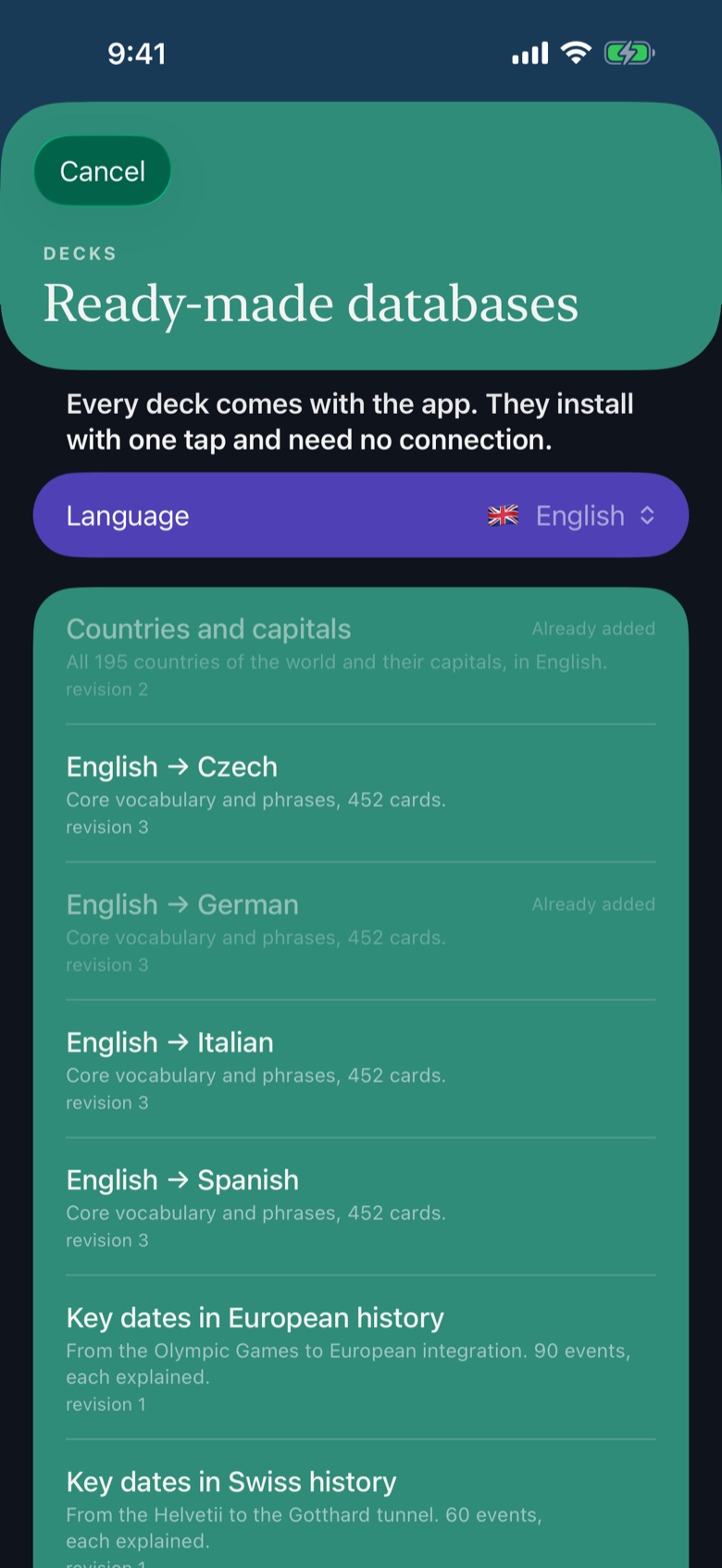
A bundled deck. The fastest way to try the app out — all 45 decks ship inside the app. Open Ready-made decks: in the middle of the screen when your library is empty, otherwise below the list. Countries and capitals, history and vocabulary are all in there. They install after one confirmation and skip the wizard.
A deck from the website. memorate.app has the same ones, plus newer revisions and anything that came after the app shipped. Tap a file and it opens right here.
Your own CSV. If you already have cards somewhere, export them to CSV and walk through the import wizard. It handles any separator and an optional header row.
By hand. Tap + in the top bar, name the deck and add cards one at a time. Described in Decks.
2. Add the cards to learning
This is the step people get stuck on, so watch out for it: an imported card does not learn itself. It sits in the deck as content and will not appear in a test until you commit it.
Committing means saying "I want to learn this." At that moment the card gets its starting values, a first due date tomorrow or the day after, and shows up in today's drill straight away.
There are two ways to commit:
- Swipe a card row from left to right in the deck detail. Two buttons appear, one per direction; a full swipe commits the forward one.
- From the card detail, with Commit to test in the section for the direction you want.
Do not commit everything at once. A hundred new cards means a hundred cards due within two days. Fifty cards a week is a pace you can keep.
3. Answer
Go back to the overview. The Today test and Drill tiles show how much work is waiting. Tapping a tile in the summary starts a session across every deck; tapping one inside a deck starts it there only.
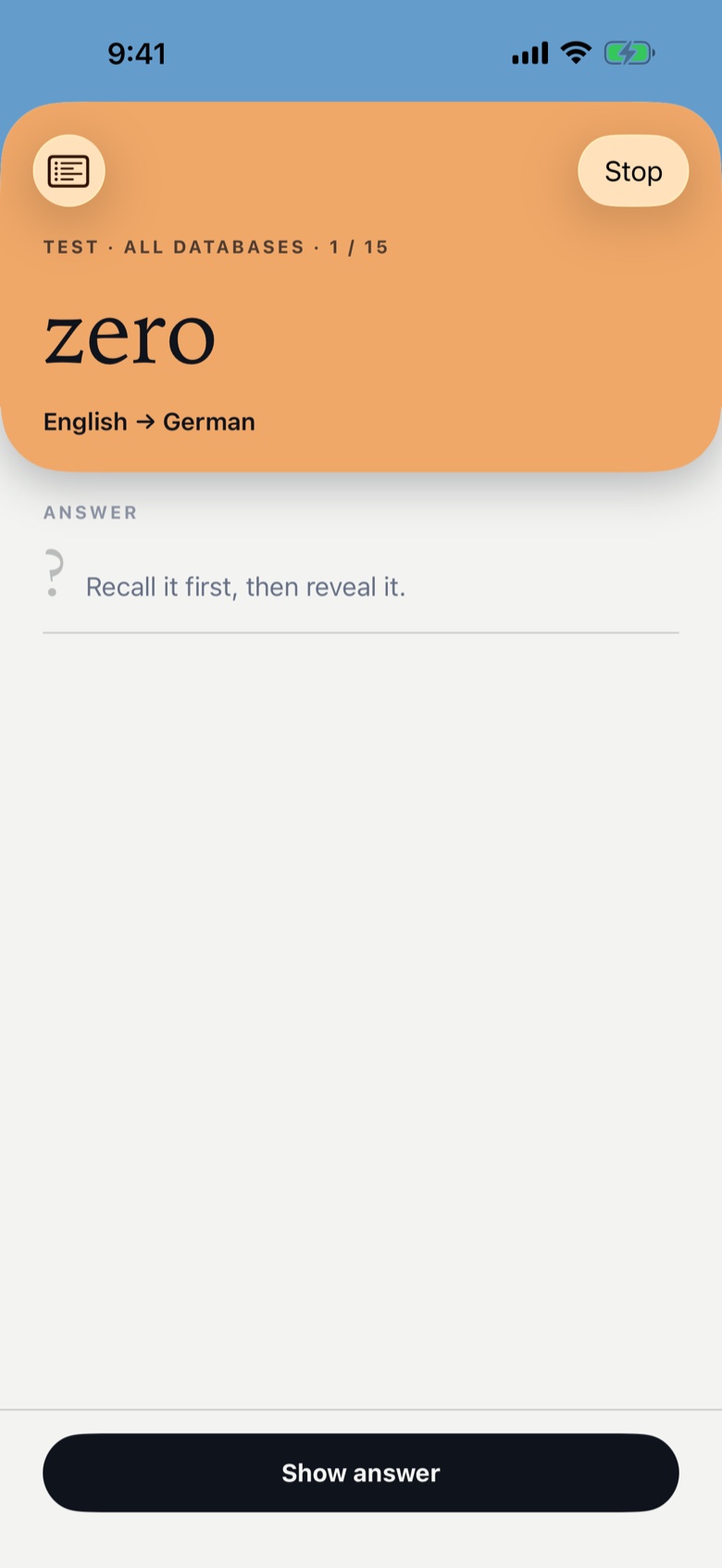
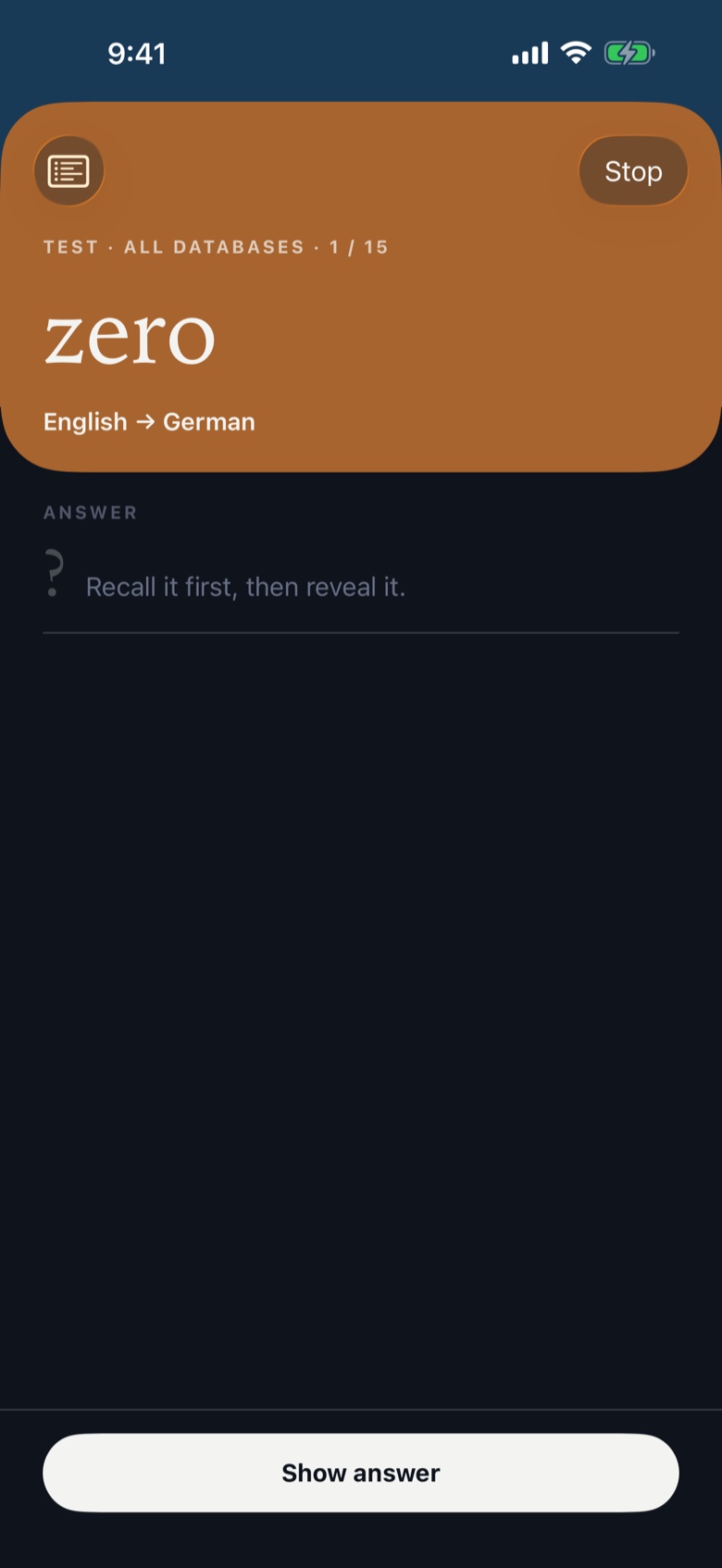
Read the question, try to recall it, and only then tap Show answer. The order matters — the whole model rests on you genuinely attempting to recall.
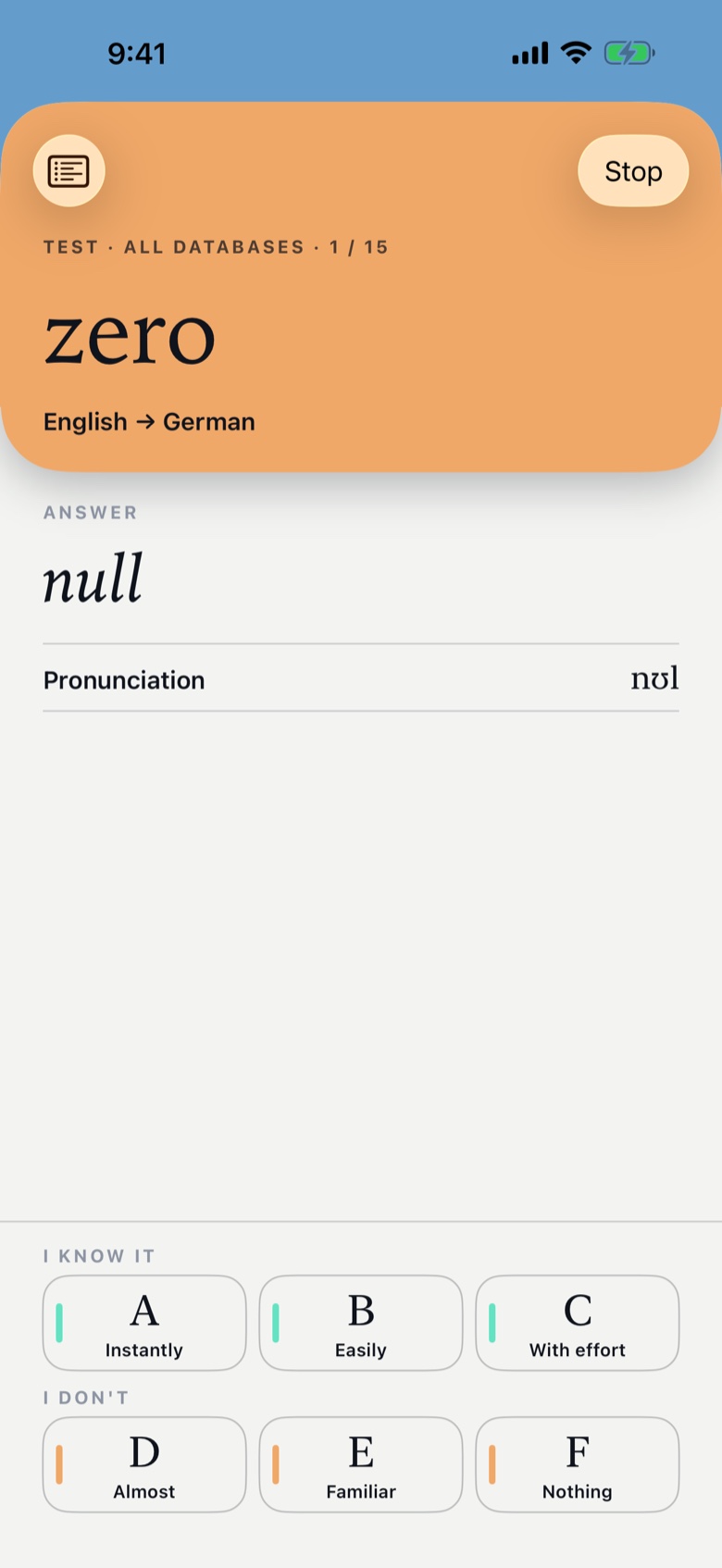
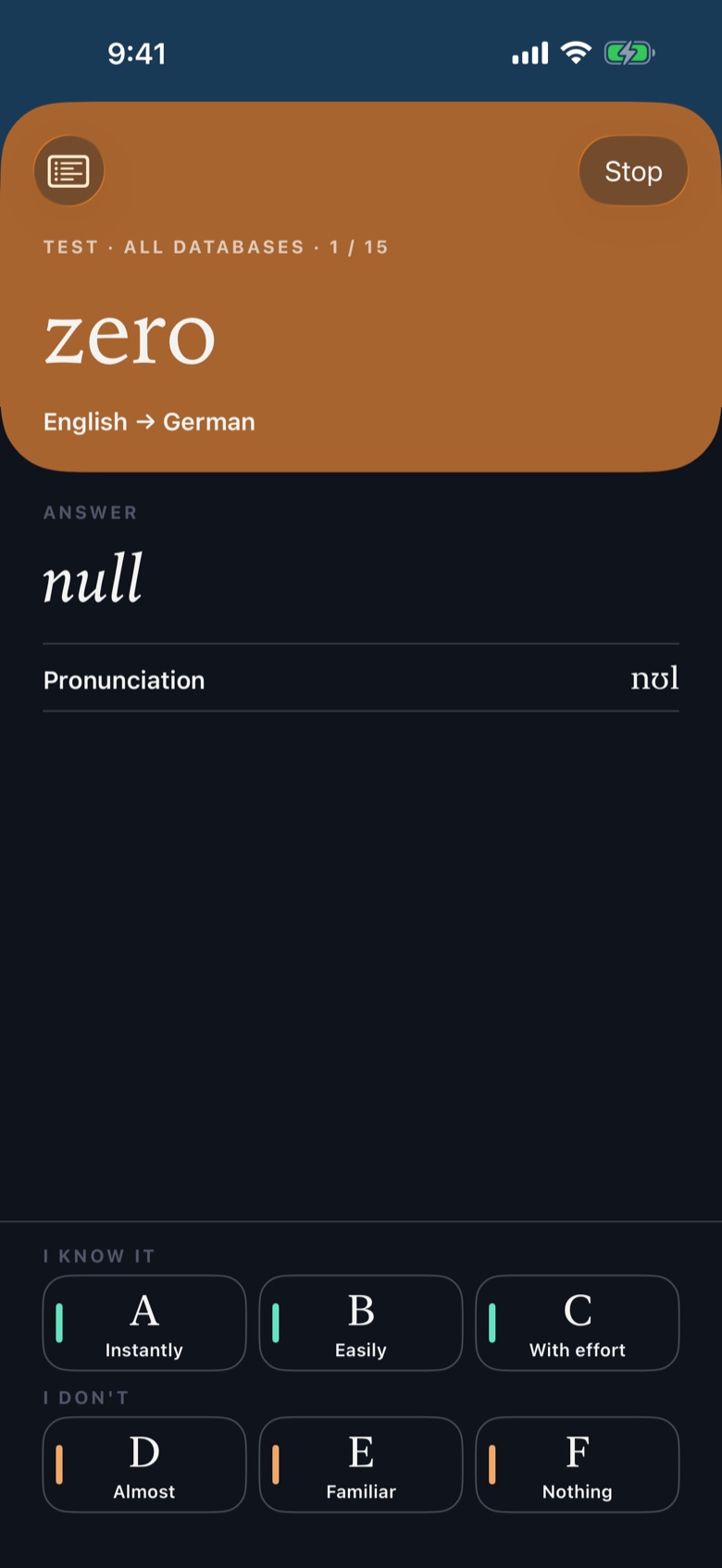
Then pick the grade that matches how it went. What each one means is in Test.
4. Come back tomorrow
Memorate will not nag you — it sends no notifications. Instead it can show a count on the app icon with how many cards are waiting today. Turn it on in Settings.
That is the technical part done. How to turn it into a habit — in what order to do the test, the drill and committing, and why that order — is on A day with Memorate.