 Memorate
The overview is the first thing you see. It answers one question: how much work is there today?
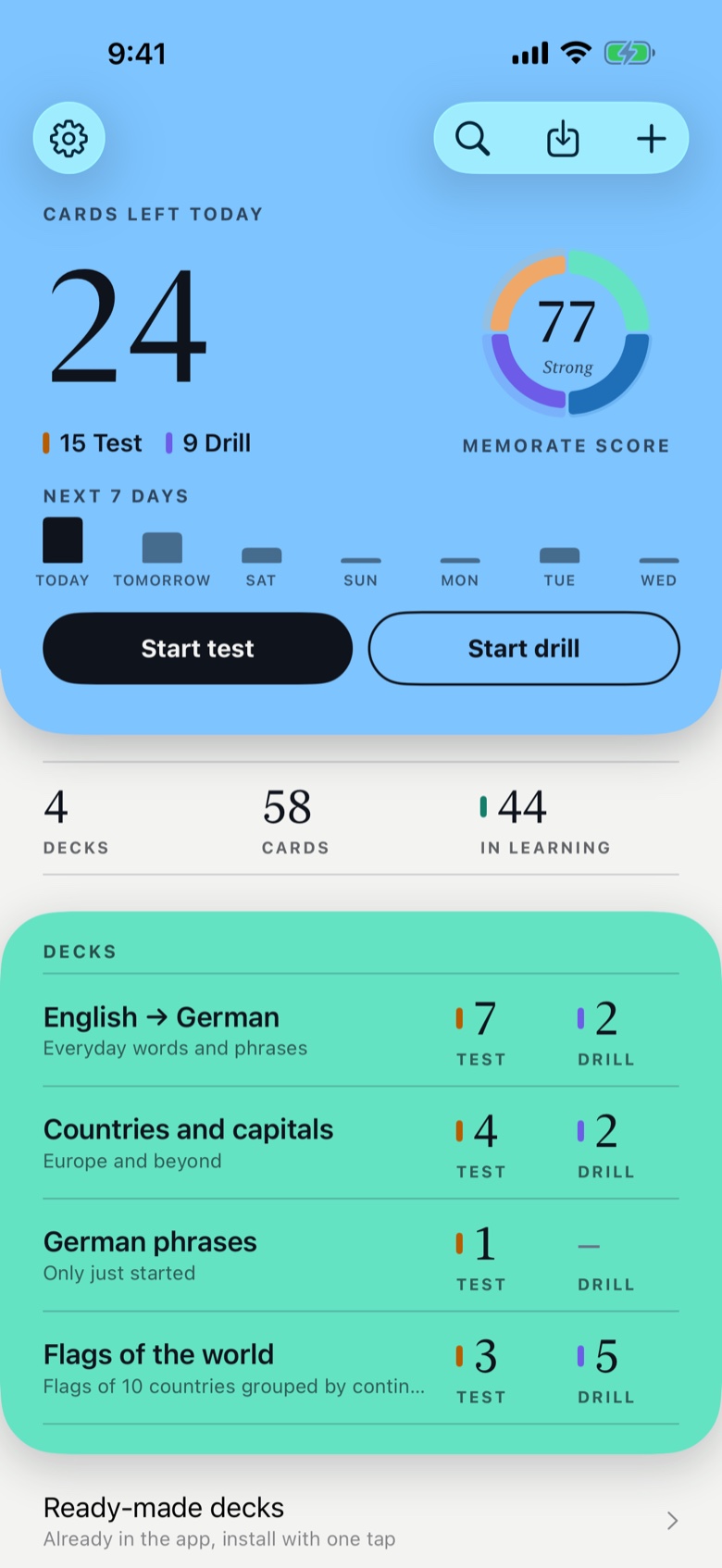
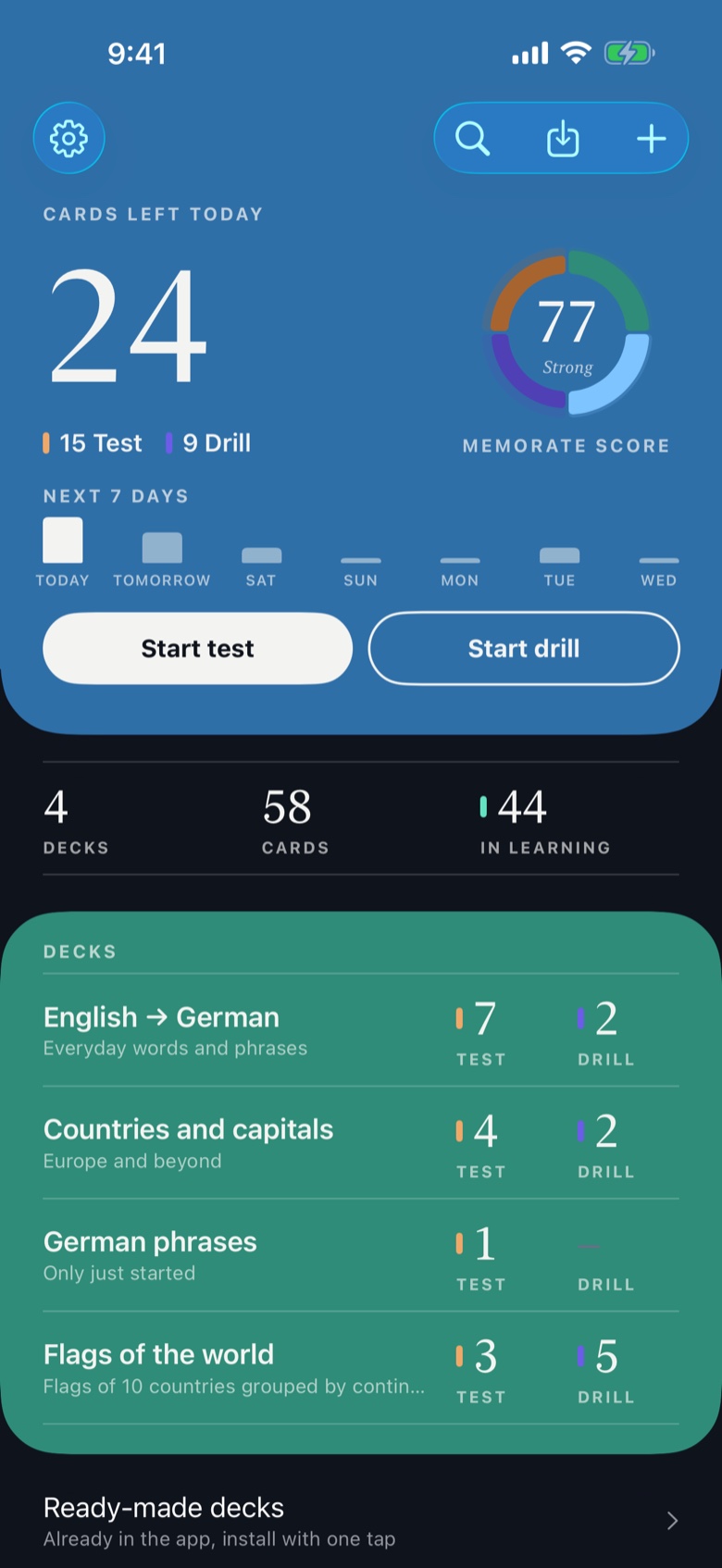
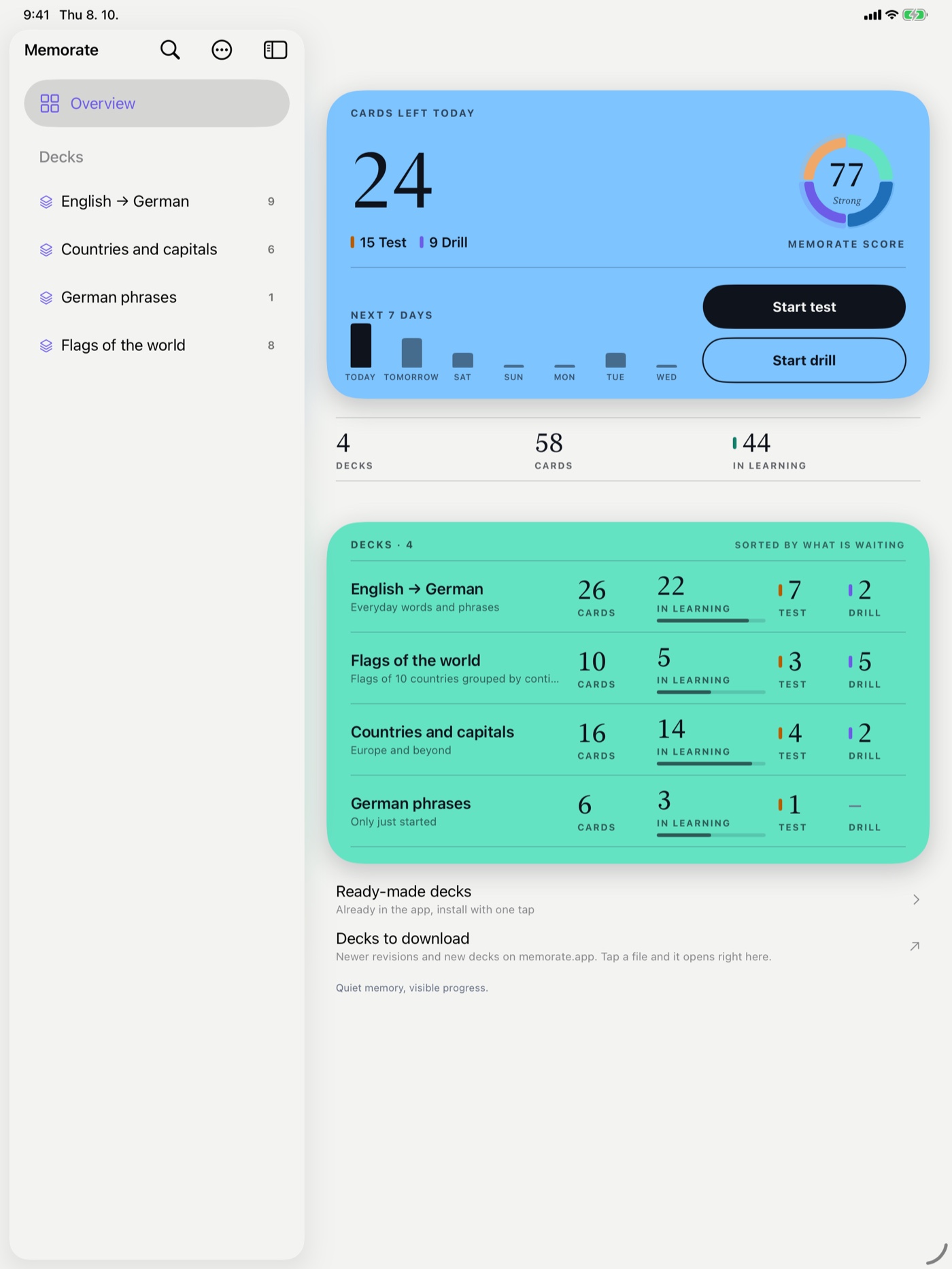
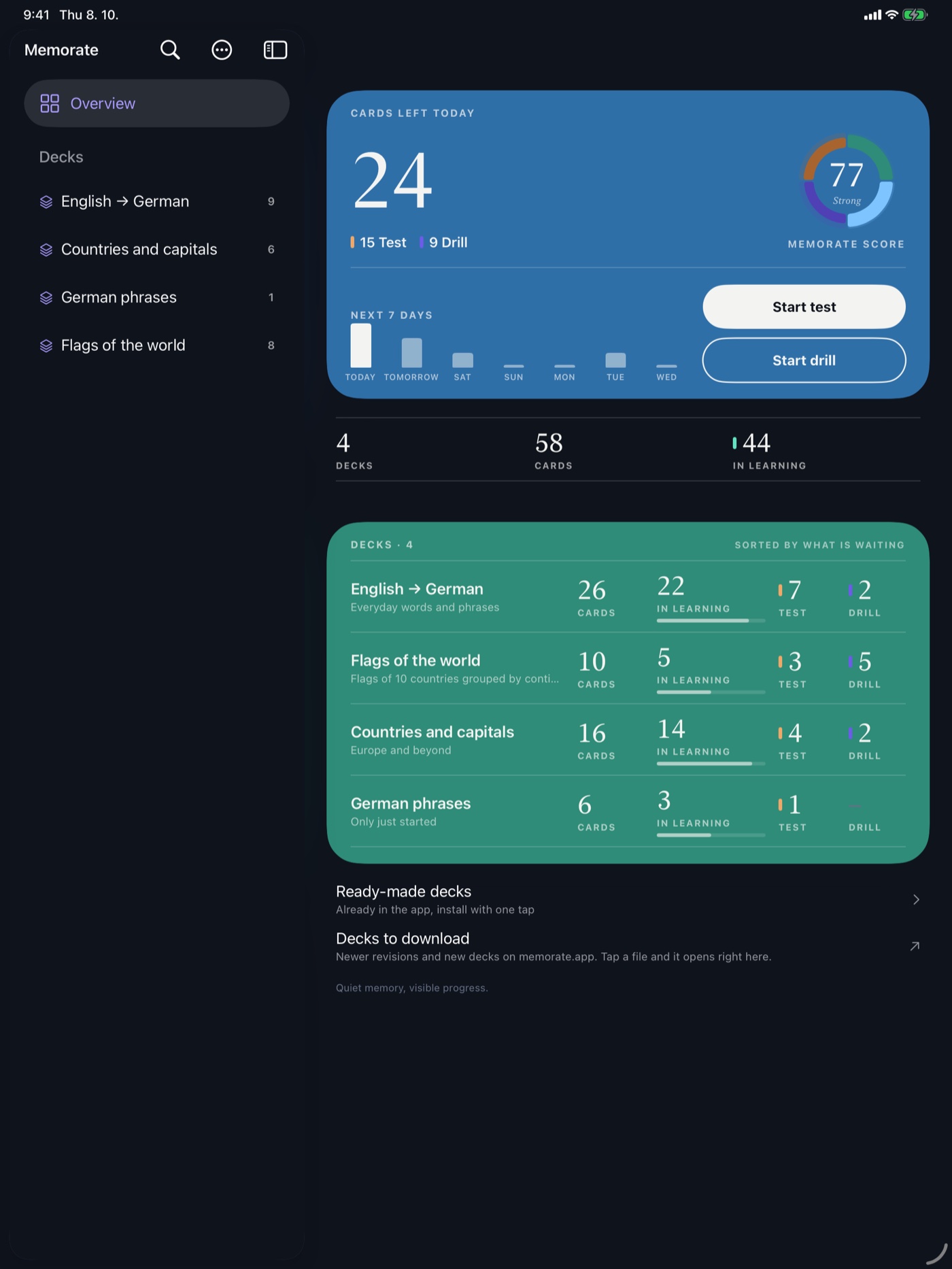
This chapter describes the new look, the default since version 0.3. The original look shows the same things as tiles and a list — see Two looks.
The top bar
Left to right:
- gear — settings,
- magnifier — search across every deck,
- arrow into a box — import from CSV or from a
.memoratefile, - plus — new deck.
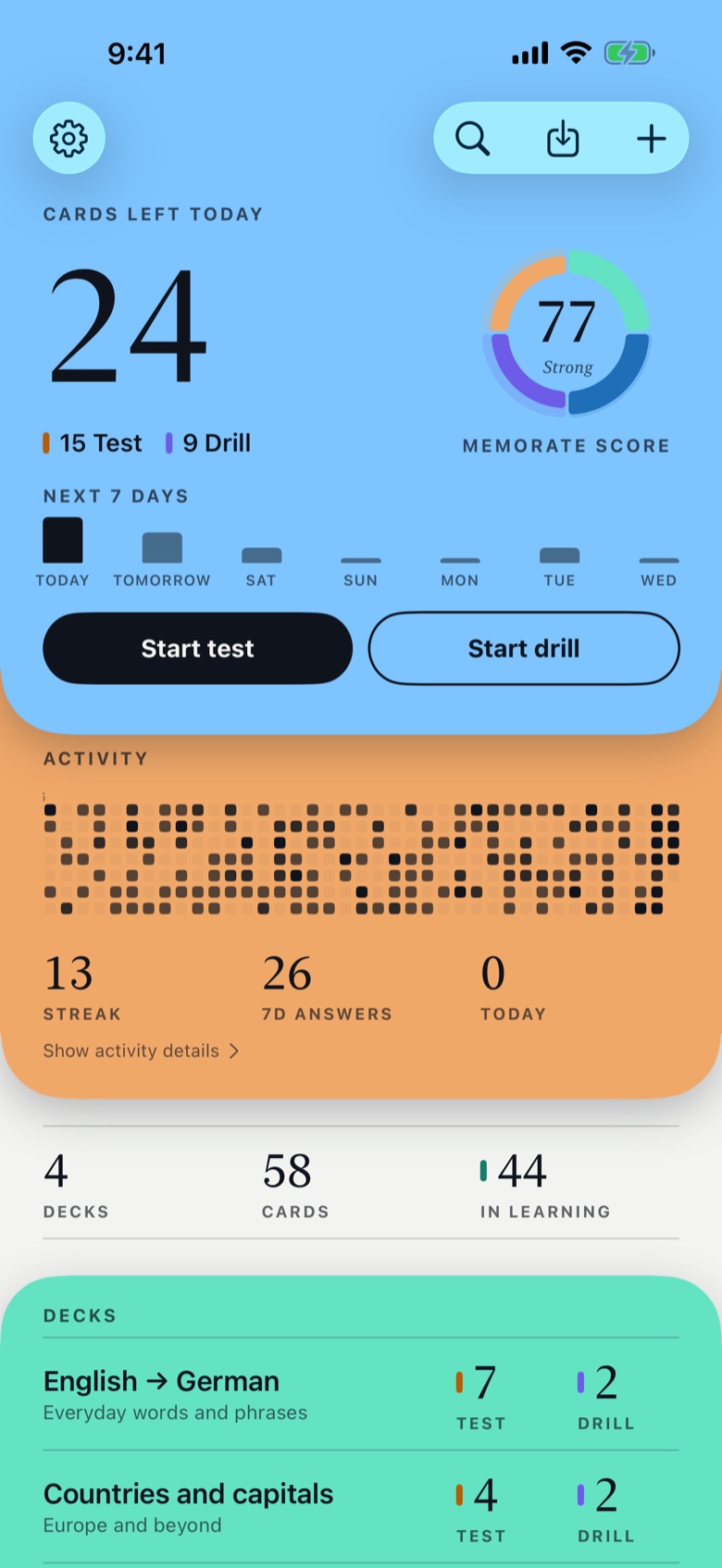
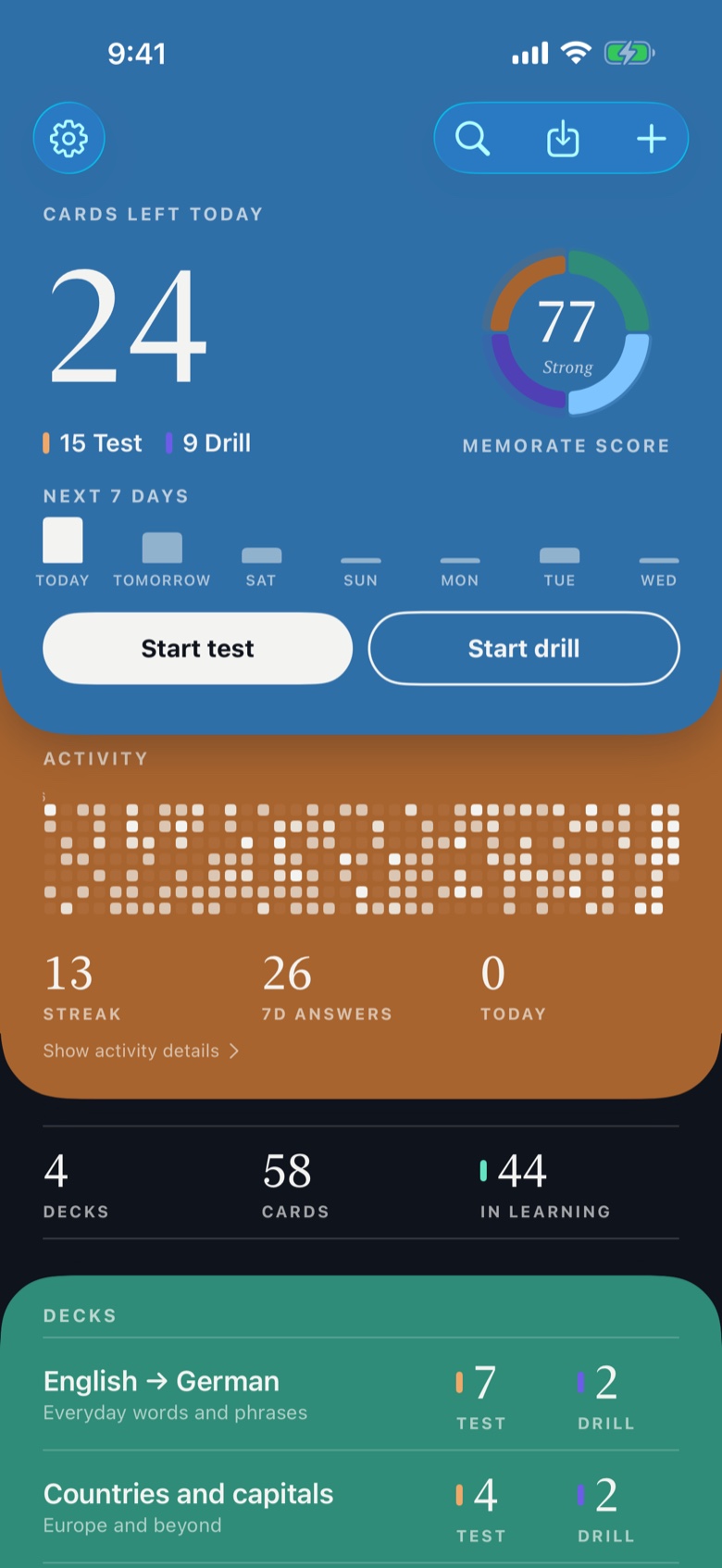
The blue card: today
A blue card sits at the top and sums everything up across all decks.
The big number says how many cards are left today — test and drill together, the same thing the icon badge and the widget show. Below it is the split:
| Item | What it means | What tapping does |
|---|---|---|
| Test | directions due today or earlier | starts a test across everything |
| Drill | directions waiting for practice | starts a drill across everything |
On the right is Memorate Score: a ring of four components with a number from 0 to 100 and a word band inside. Tap it for the breakdown — see Memorate Score.
Below the numbers is the week ahead: seven bars, Next 7 days, today solid and the other days translucent. They show when the work piles up before you get there. The exact numbers are in statistics.
At the very bottom of the card are Start test and Start drill. When nothing is waiting in a mode, its button is faded and cannot be pressed.
As you scroll down the card collapses to a single row: the day's number, Test and Drill, and a small ring with the score. The week ahead and the buttons fade out as it does; in the collapsed card you start a test or a drill by tapping its count. It stays at the top and the rest of the page slides under it.
Below the cards is a row of library counts: Decks, Cards and In learning. Tapping one opens an explanation. For In learning it also has a breakdown — how many cards you are learning, how many of them in both directions and how many questions that puts into tests — and a chart of how it has changed over time.
In learning counts cards: a card committed in both directions counts once. Test and Drill count directions instead — such a card brings two questions to them, because they are two different skills. See Cards and directions.
The orange card: activity
Detailed mode only. A grid of days shows when you studied — a darker day means more answers. Under it are three numbers: Streak, 7d answers and Today.
It is the first to collapse as you scroll: the grid becomes a row of the last seven days with the week's answers and the streak beside it. Only then does the blue card above it start to collapse. Coming back up, the cards expand in the same order.
Covered in Activity.
The green card: decks
Every deck is a row: name, description, and Test and Drill on the right.
- Tapping the name opens the deck detail.
- Tapping Test or Drill starts a session in that deck only.
- A dash instead of a number is not a button — there is nothing to start.
Archived decks
An archived deck moves to the end of the list. It gets no heading of its own — it is still your deck, just set aside. You recognise it by the grey row and the archiving date under the title.
It is not scheduled, does not count towards today's numbers and does not dilute the averages. Its content stays and search still finds it.
Archiving lives in the menu on the deck detail.
Where more content lives
Right at the bottom, after everything you own, sit two rows: Ready-made decks (bundled into the app, installed after a confirmation) and Decks to download (opens the website in a browser).
They are last on purpose. Once you have decks, you only look for more now and then — and this does not belong among your own. An empty library flips it around: there both routes sit in the middle of the screen.
When you are done
When there is nothing left to do, the blue card says so in its heading, Done for today, and a row under the cards shows how many answers you gave. It only shows up on a day you actually answered something: an empty queue looks exactly like a day that has not started yet, and only finished work deserves the sentence.
Refreshing
The overview recomputes itself when something changes, and at the latest after a minute. When you want fresh numbers right now — after answering on the watch, say — pull the screen down and let go.