 Memorate
A deck is a set of cards on one topic — Italian vocabulary, world capitals, anatomy. Tests and drills can run on a single deck or across all of them.
A new deck
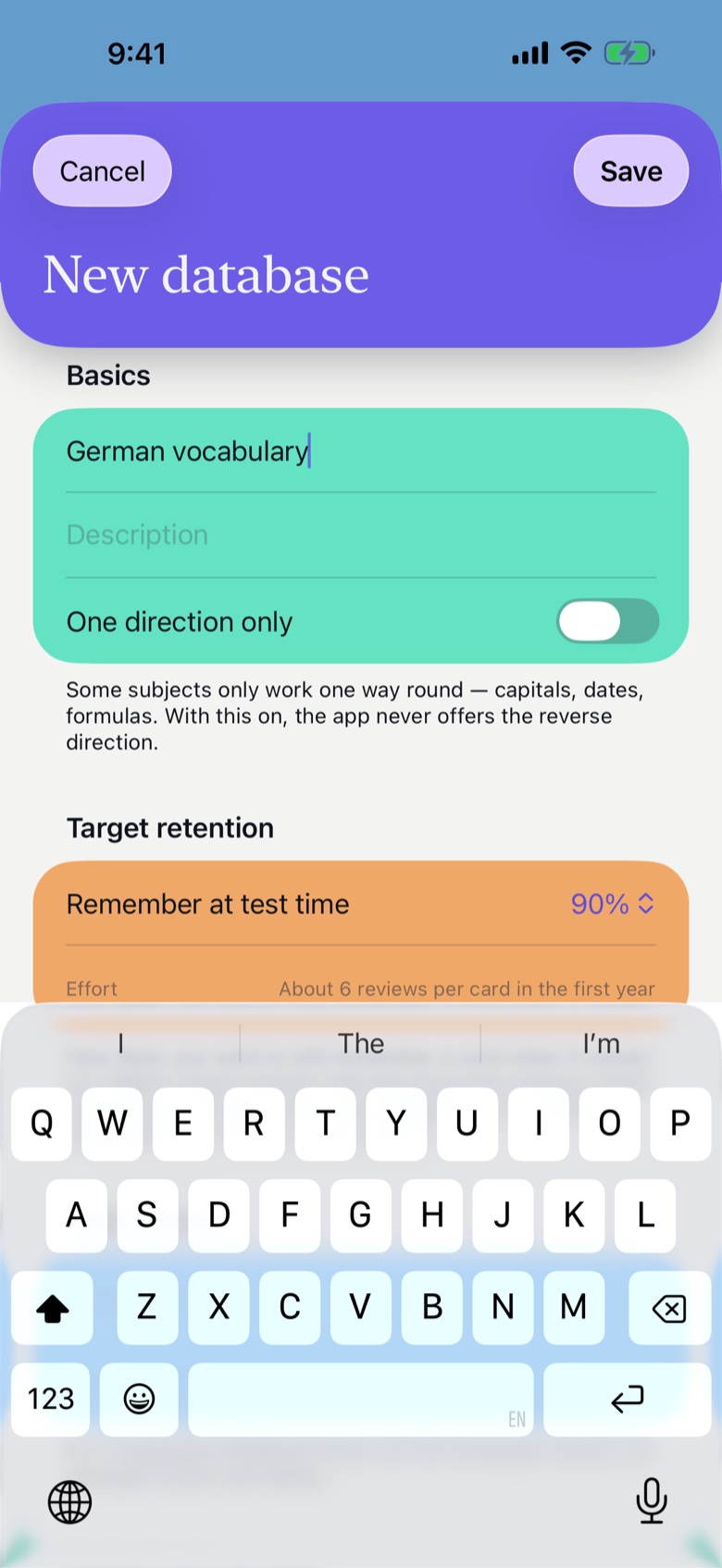
Tap + in the overview's top bar. The editor opens.
Basics
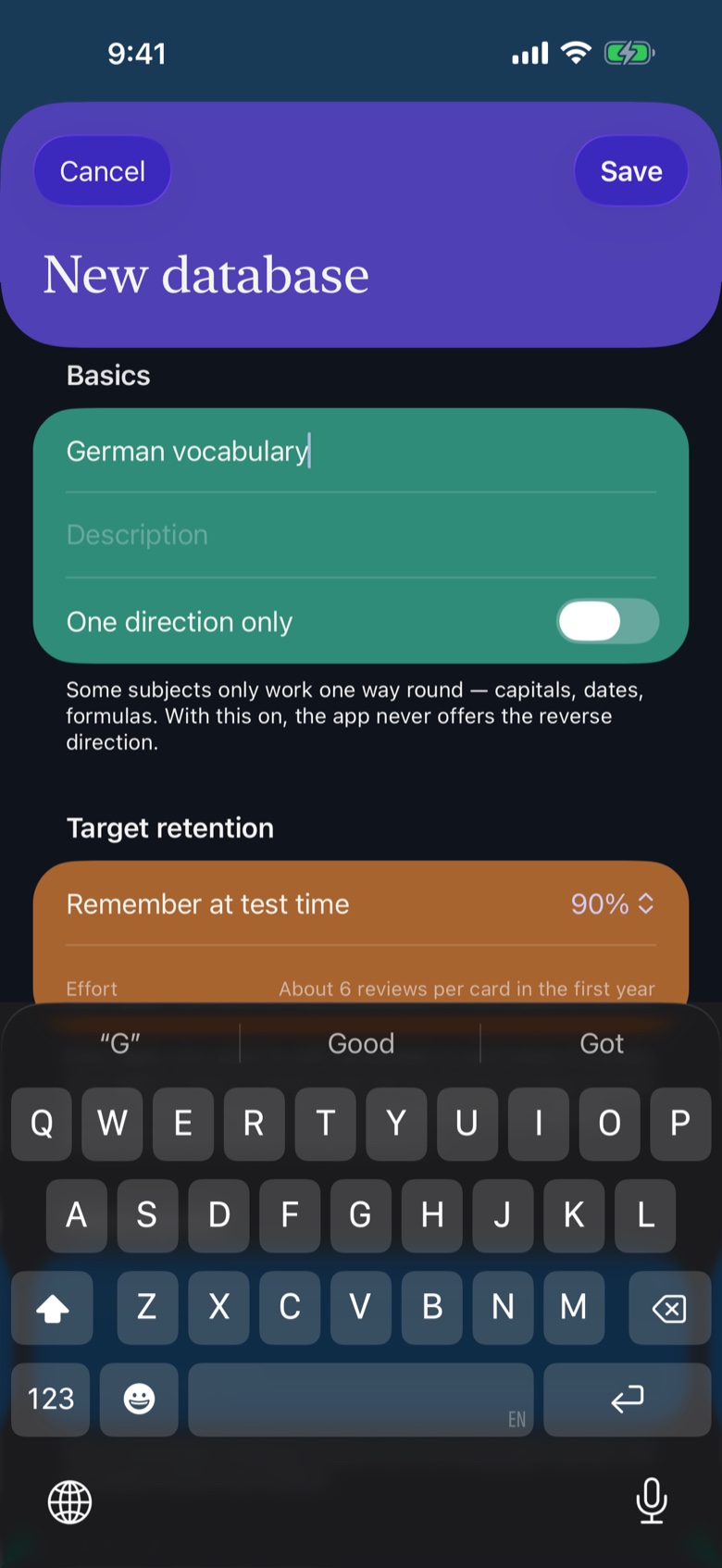
- Name — the only required field.
- Description — an optional line under the name in the overview.
- One direction only — a switch, covered further down.
Target retention
This section only appears in detailed mode. In simple mode it would be a slider with nothing to go on — and 90 % is a good default that needs no attention.
The setting Remember at test time says how likely you want to still remember a card when it comes up. The choices are 75, 80, 85, 90, 95 and 97 %.
| Value | What it does |
|---|---|
| higher | shorter intervals, more reviews, less forgetting |
| lower | longer intervals, fewer reviews, more forgetting |
Under the slider is an effort estimate — roughly how many reviews per card that costs you in the first year. The original SuperMemo for Palm was fixed at 90 %.
90 % is a good starting point. Raise it only for material you truly have to be sure of (an exam, terminology at work). Lower it for things where forgetting the odd item does not hurt.
Image size
Appears only for decks that have images. A slider with a live preview sets how tall an image is drawn on a card. The details are in Images on a card.
Field names
The labels for question and answer. For a language deck these are the language names, for example English and Italian. They show up on the card detail and in tests, so you can tell at a glance which direction is running.
Field display
This is where you name extra fields 1 and 2 and decide when each one shows during study:
| Choice | When the field is visible |
|---|---|
| With question | alongside the question — a hint, such as a pronunciation |
| With answer | only once the answer is revealed (the default) |
| Always | in both phases |
The same applies to the note.
A field set to With question must not give the answer away. A pronunciation is fine, a translation is not — otherwise you stop recalling the card and start reading it.
Sharing and authorship
Who made the deck and on what terms it may be shared. Everything is optional and empty is fine — an export never stops because of it.
| Field | What for |
|---|---|
| Author | a name or a handle |
| Author link | a website or profile |
| License | pick a common one, or write your own |
| Source | where the deck came from |
Each license comes with one sentence saying how it differs from the others — CC0 means "anyone may do anything, even without crediting you", CC BY-NC means "like BY, but not for commercial use". These are short summaries, not legal advice; the full text is a tap away.
Authorship travels with the deck when you share it. On an imported deck it stays as it was — passing someone else's deck along does not make you its author.
If you make several decks, you can prefill your name in settings under Signing exports. It prefills only new decks, never existing ones.
The deck detail
Tapping the name in the overview opens the detail.
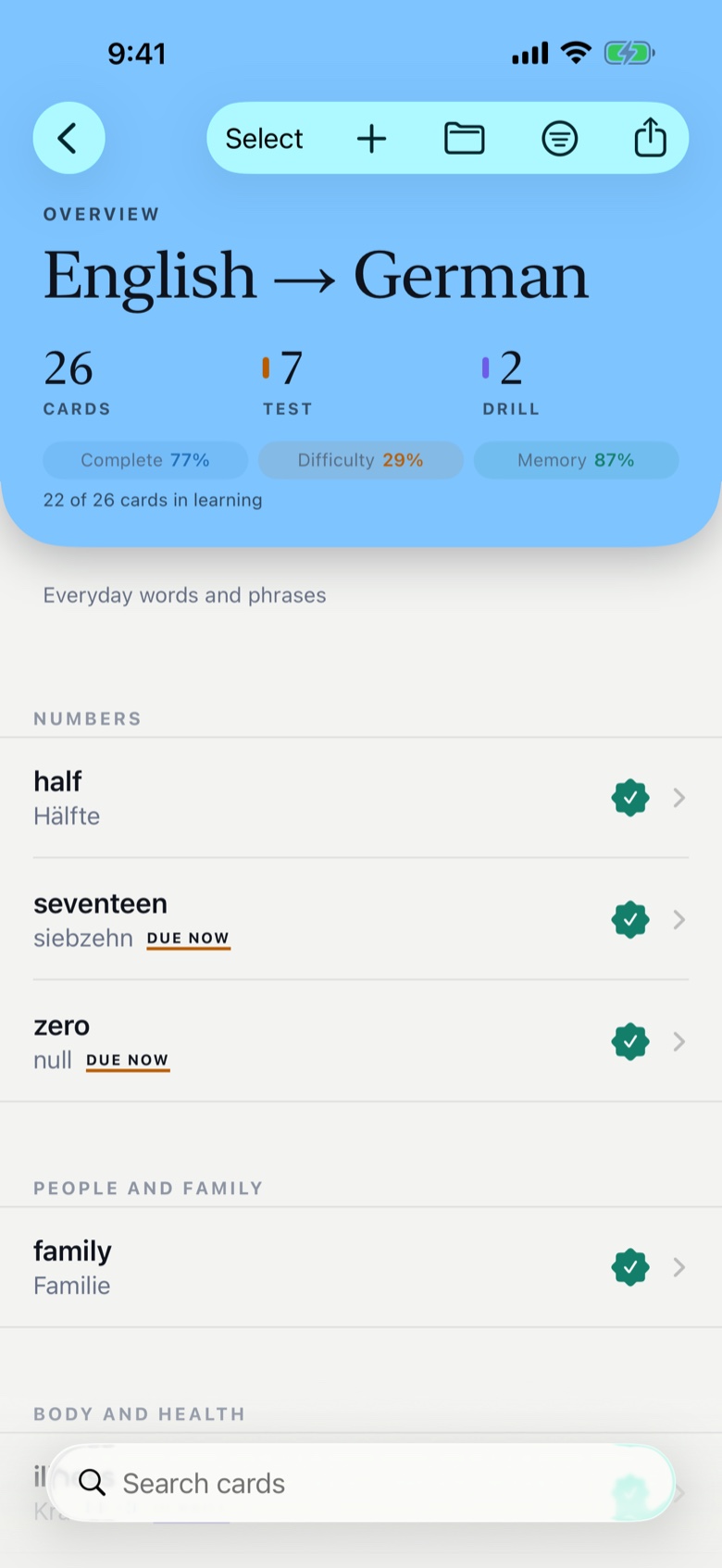
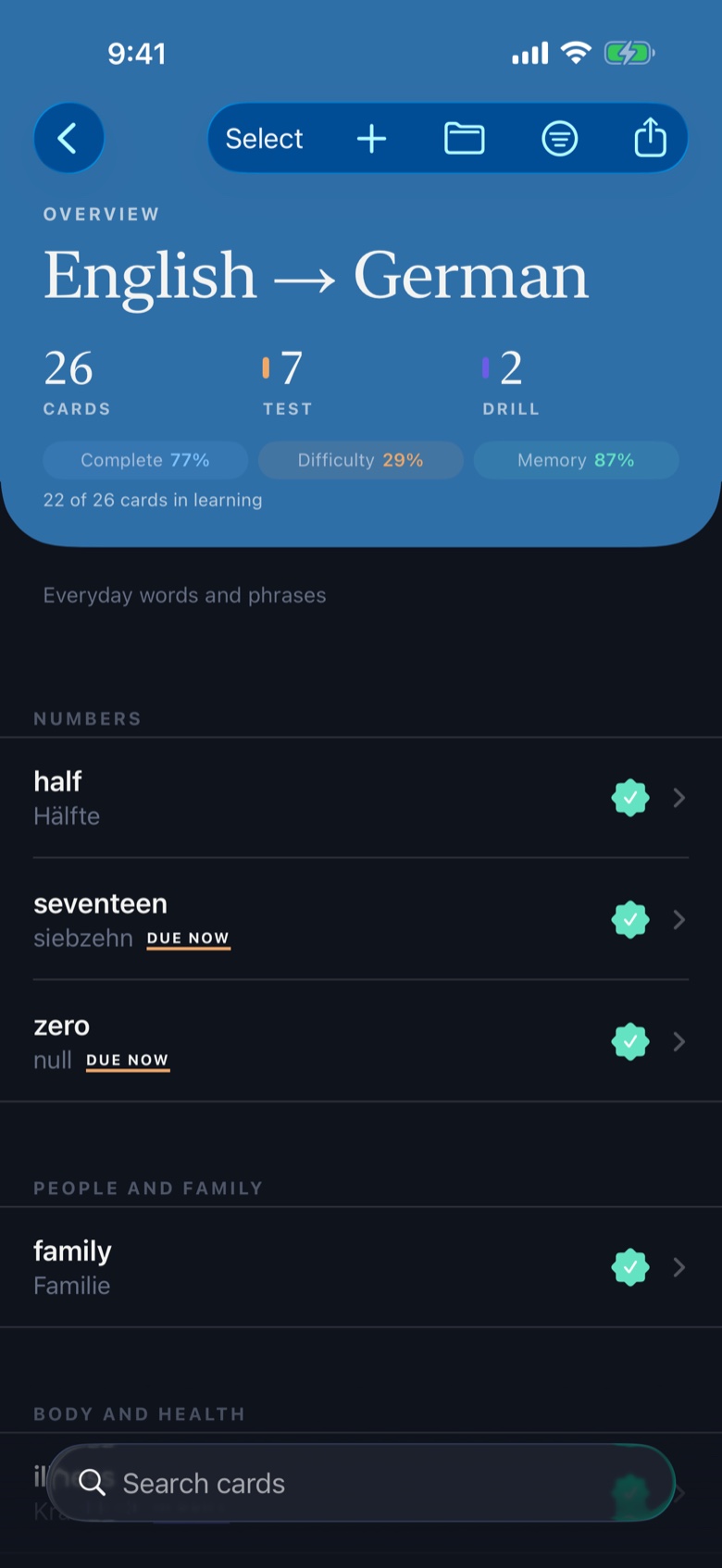
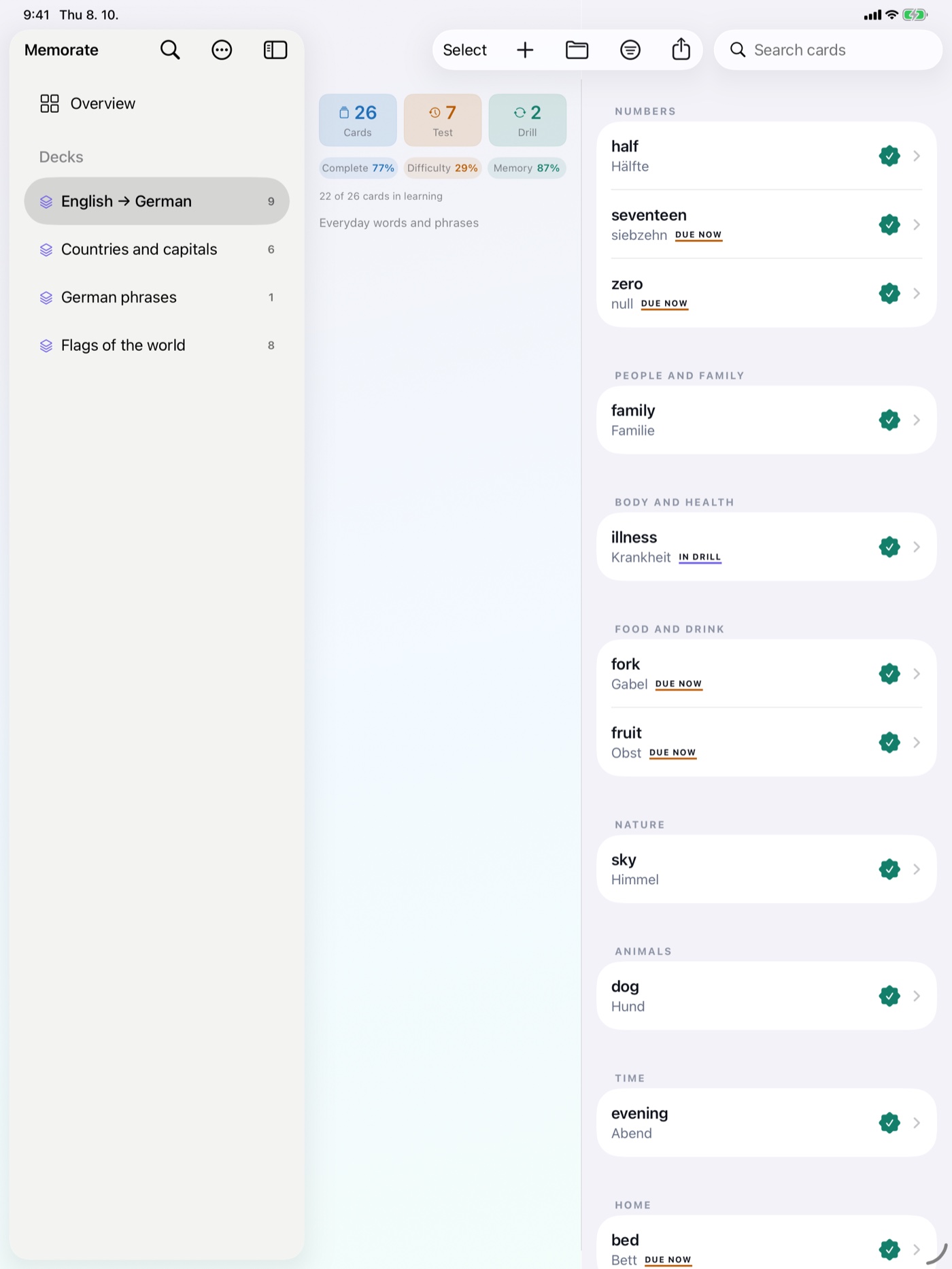
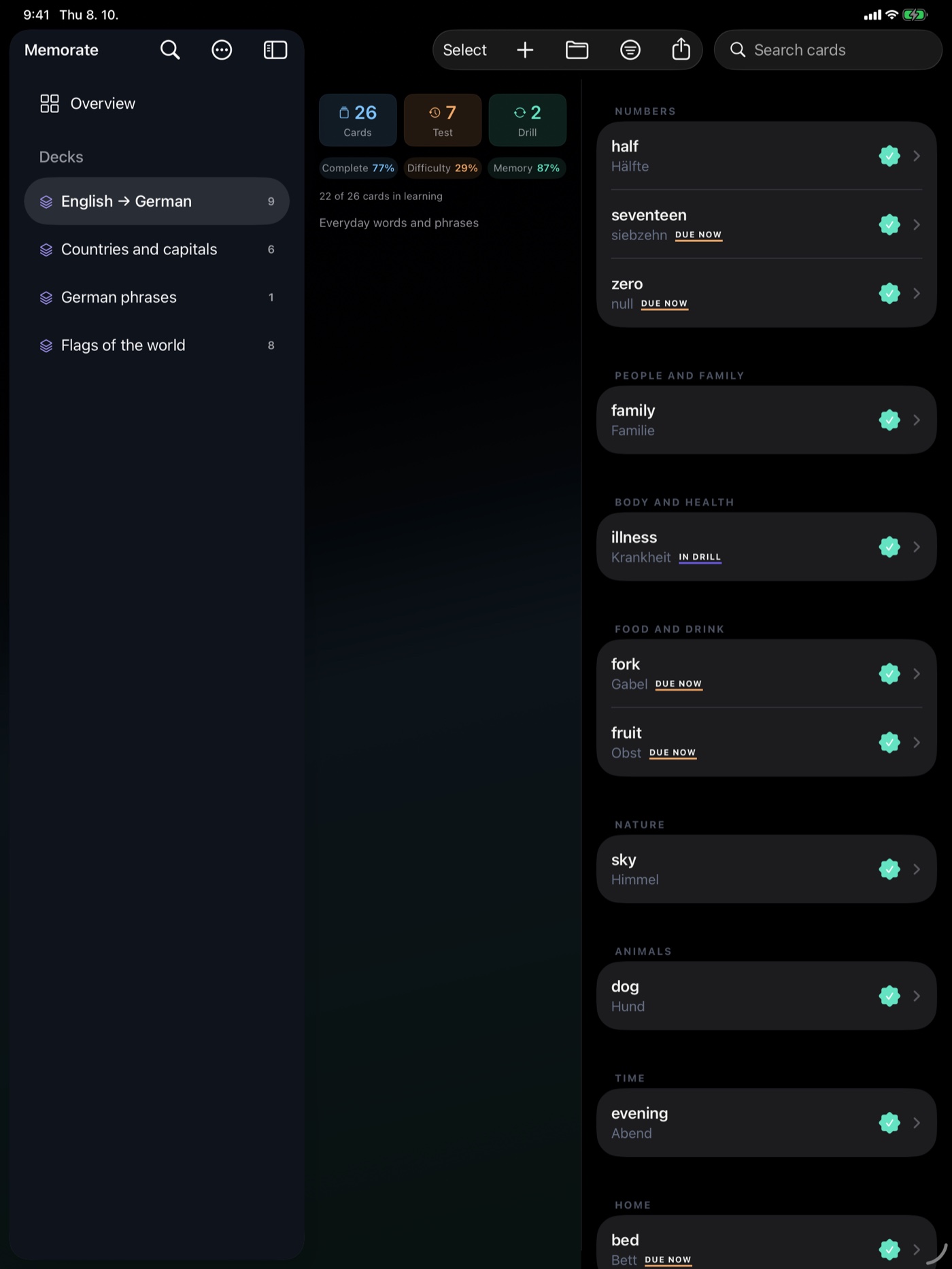
At the top are the same statistics as in the overview, scoped to this deck: Cards, Test, Drill, and in detailed mode also Complete, Difficulty and Memory. Under them is a line reading X of Y cards in learning, and then the deck's description. Tapping that line opens the same explanation as on the overview, with the split into directions.
Below the statistics the cards are grouped by category. Every card shows its question, its answer and status badges:
| Badge | Meaning |
|---|---|
| Due now | its due date has arrived |
| In drill | waiting for practice |
| lines icon | the card has a note |
On the right is the direction indicator:
| Mark | Meaning |
|---|---|
| dashed circle | the card is not in learning |
| seal with a checkmark | the forward direction is committed (question to answer) |
| seal with a turned arrow | the reverse direction is committed |
Two seals side by side therefore do not just mean "both directions" — they tell you which ones.
One direction only
For some subjects the reversed question makes no sense. "Prague → ?" has an answer, but "1620 → ?" or a chemical formula backwards does not. Decks therefore have a One direction only switch, right under the name in the deck's settings.
Turn it on and the reverse direction disappears: no swipe action in the list, no section on the card detail, no second seal in the row. It is not greyed out, it is simply gone — a greyed-out option only makes people wonder why.
If you turn it on for a deck where the reverse direction is already being learned, the app asks first and tells you how many cards it affects. Those cards leave the learning queue, but everything you have answered on them stays recorded — change your mind and switch two-way learning back on, and it picks up where it left off.
It suits capitals, dates, formulas and chemical symbols. It does not suit vocabulary — there the reverse direction is the valuable half.
At the bottom is a search field that filters cards inside this deck.
The deck's toolbar
- + — new card,
- folder — categories,
- filter — a menu with further actions,
- arrow up — sharing the deck.
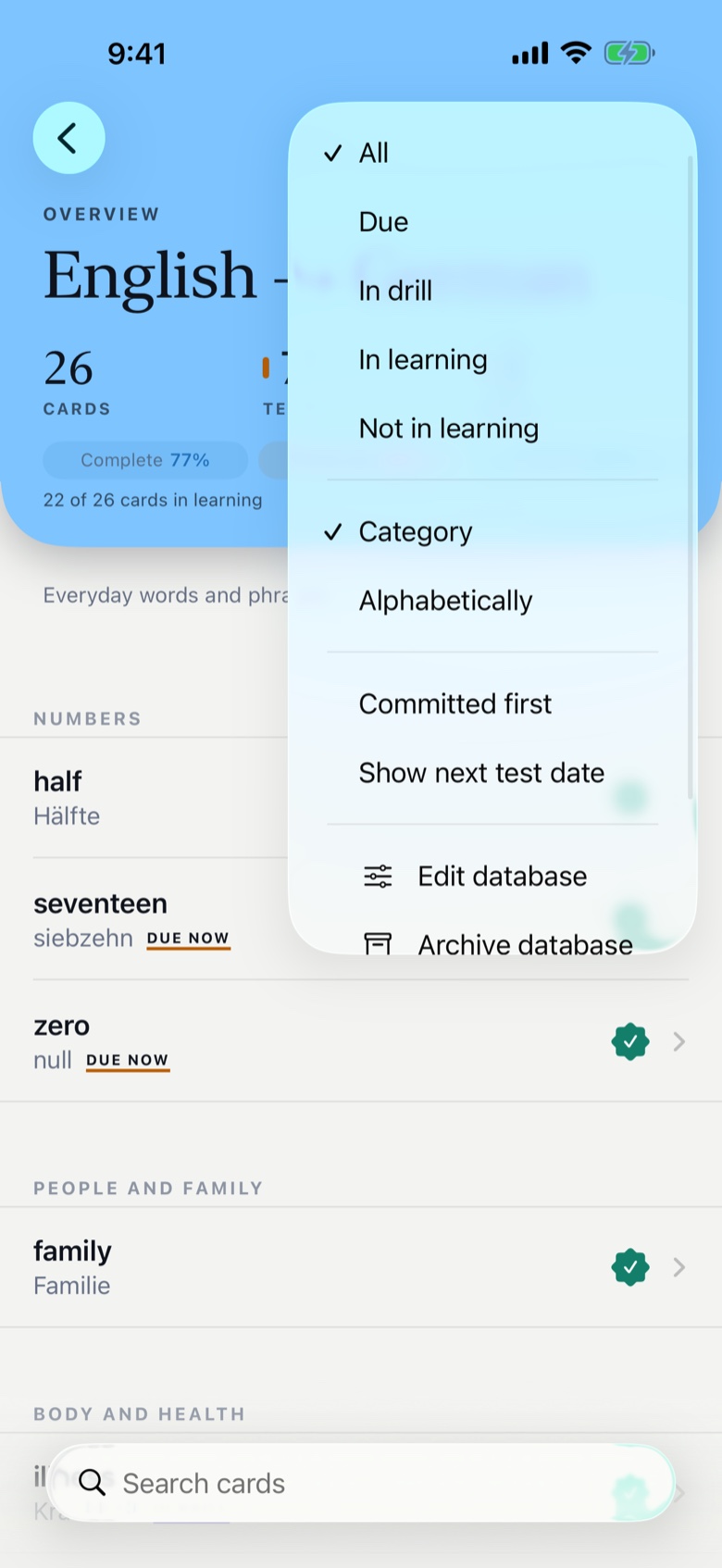
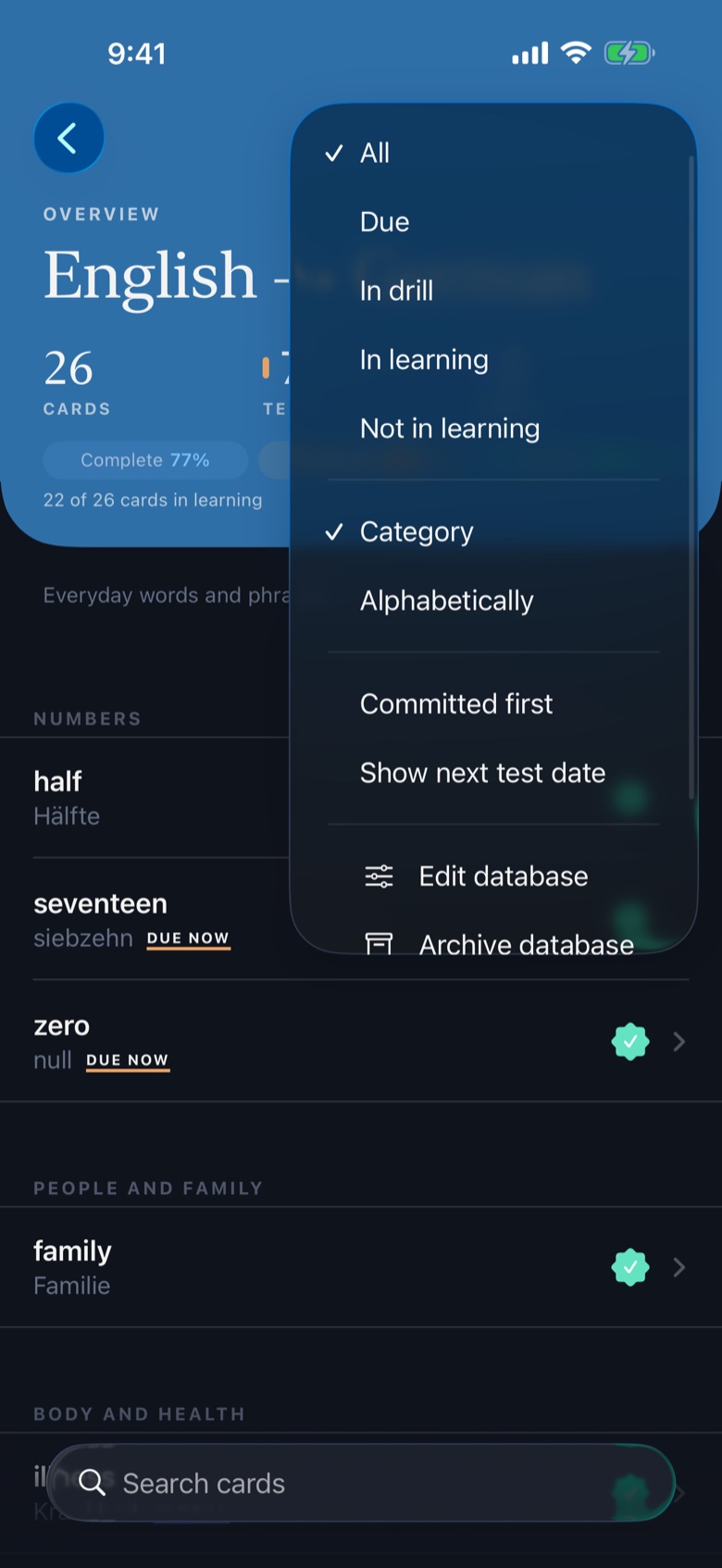
The menu offers:
- Show — filtering the list by status: All, Due, In drill, In learning, Not in learning,
- Sort by — Category or Alphabetically, plus Committed first and (in detailed mode) Show next test date,
- Edit database — back to the editor,
- Archive database,
- Remove all from learning — cards stop appearing in tests, but measured values and history are kept,
- Reset learning — erases measured progress and answer history in this deck. A snapshot is made first, so it can be taken back.
Archiving
An archived deck drops to the end of the overview. On the phone it gets no heading of its own — a grey row and the archiving date say enough; in the iPad sidebar it moves into an Archived section. Either way it is not scheduled, does not count towards today's numbers and does not dilute the averages. Its content stays and search finds it.
Use it for material you have set aside — a finished course, a seasonal topic. Return from archive in the same menu brings it back, and the app moves the due dates on so nothing lands on you at once.
Deleting
Delete database is at the bottom of the editor. The deck and its cards disappear; the history stays in the journal.
Deleting is irreversible unless you have a backup. Before you delete anything large, make a snapshot — it is one tap.