 Memorate
Settings open with the gear in the overview's top bar.
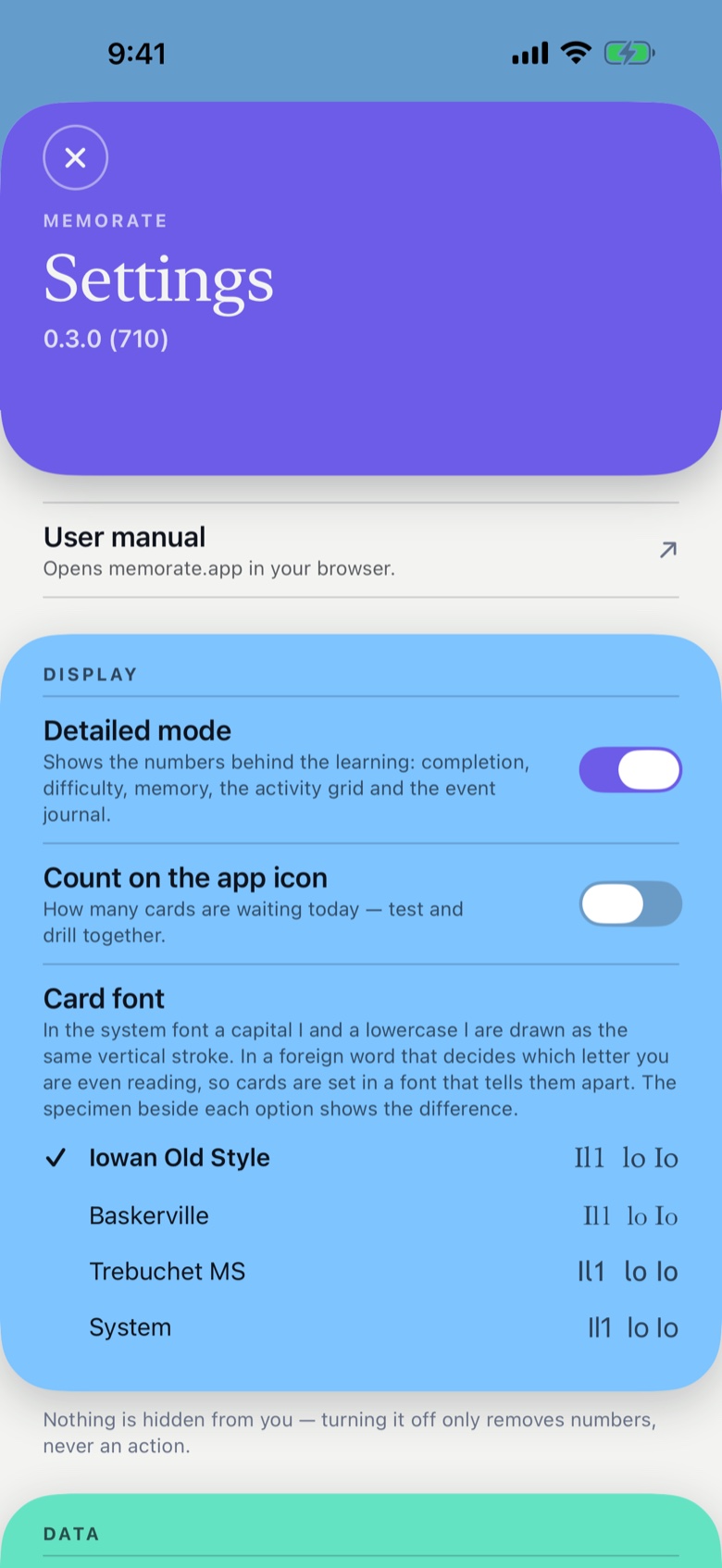
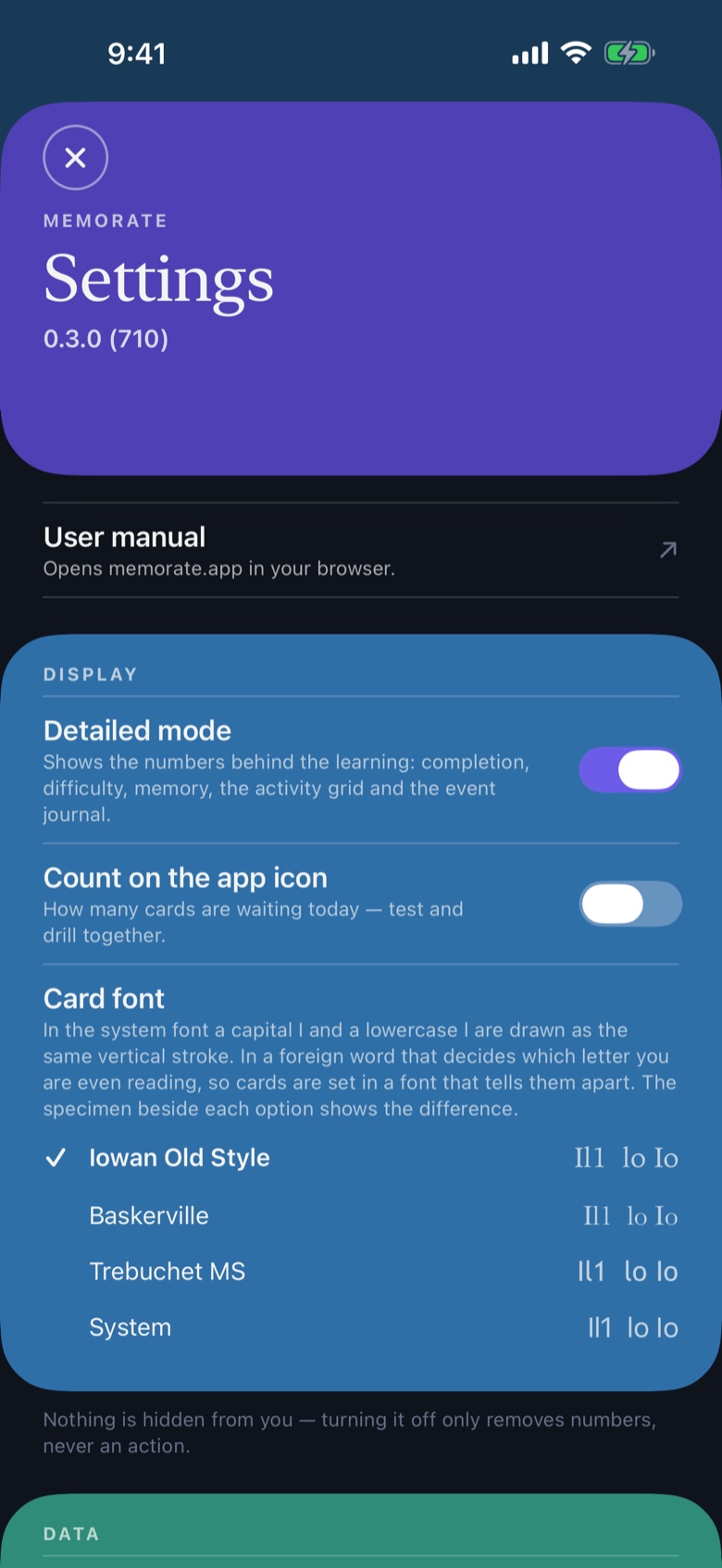
Display
Detailed mode
Shows the numbers behind the learning: completion, difficulty, memory, the activity grid and the event journal. Covered in Display modes.
Nothing is hidden from you — turning it off only removes numbers, never an action.
Look
The new and the original look are not switched here but in the system Settings: Settings → Apps → Memorate → Typeset look. See Two looks.
Count on the app icon
A badge on the app icon with how many cards are waiting today — test and drill together.
The number is recomputed on every change and rolls over to tomorrow's value overnight, so it is correct in the morning before you even open the app.
The badge needs permission for notifications. If you decline, Memorate says notifications are turned off and points you at the system settings. Apart from the badge, it sends no notifications at all.
Card font
The content of a card — question, answer and pronunciation — is set in its own font, separate from the rest of the app. Each option shows an Il1 lo Io specimen, so the point is visible without reading.
The system font draws a capital I and a lowercase l as the same vertical stroke. In the interface that does not matter, because you know the words. In a foreign language it does: "lo" (with a lowercase L) and "Io" (with a capital I) are two different words. The default is therefore Iowan Old Style, which tells them apart — the specimen beside each option shows it.
- Iowan Old Style — the default, serif
- Baskerville — serif, a slightly stronger difference
- Trebuchet MS — sans serif
- System — the previous look
Trebuchet MS has no phonetic alphabet characters, so the pronunciation is drawn in a different font than the word above it. It shows on decks with pronunciation; on the others it does not.
Interface labels do not change — they are controls, not subject matter.
Data
- Backups and export → the backups chapter
- Signing exports — the name, link and licence that **pre-fill a newly created deck**. Nothing is filled in for you: a name is personal data that leaves the device, so only what you type here ends up in the file. It never overwrites someone else's authorship
Under them, in detailed mode only, comes a second group of two:
- Event journal → the journal chapter
- Forgetting curve → the curve chapter
About
Version with build number, and User manual — a link that opens memorate.app in your browser, in the language the interface runs in.
iCloud
Its own section, because it is one continuous thing: the switch, what is being transferred, and which database it talks to.
iCloud environment
Shown only on a development build, the kind that comes from Xcode. That build syncs against a different database than App Store and TestFlight builds, and devices in different environments do not see each other — even though both report that syncing works.
If you do not see this row, everything is as it should be and the device talks to the ordinary database.
The app remembers which database it last synced with. If it would suddenly have to talk to a different one — typically after installing a development build over the TestFlight one — it does not open syncing, keeps the data on the device and says why. Below that is a single button, Continue with this database; it takes effect when you close Settings. Until you press it, nothing is transferred and nothing is overwritten.
Sync with iCloud
Off by default. Until you turn the switch on, nothing leaves the phone — Memorate has no accounts and no server, so it has nowhere to send anything.
The switch and what is being transferred have their own chapter: Syncing between devices.
What you see
One status line, always: what is being transferred right now, or when something last went through. It does not appear and vanish — on a large library the state changes every second and a jumping screen cannot be read.
When iOS defers a transfer, that is said in one sentence, with the code below it; tap to copy. A deferral is not a fault: it is CloudKit saying "not now, try shortly", and it retries on its own. When it sends a recommended delay along, that is shown too.
With Low Power Mode on, iOS pauses iCloud syncing for every app — not just this one. Memorate says so, because otherwise it would look like its own failure. Plug in or turn the mode off.
The danger zone
Right at the bottom, in red. Both ask for confirmation and both make a snapshot first, so they can be taken back.
Reset learning
Across every database. Cards leave learning and start from scratch — measured progress, answer history and the learning part of the journal are erased. The cards themselves, categories and settings stay.
Use it when you want to start over with material you already have prepared.
Erase everything
Databases, cards, statistics and the journal. The app ends up as if freshly installed. Only snapshots survive.
With syncing on, this also erases what is in iCloud, and therefore what is on your other devices — the deletion travels like everything else. To wipe just one phone, turn syncing off first.
Before you confirm, it shows how many databases and cards this affects. Read it. This is the one operation after which nothing is left.
Back up first
A switch at the top of the danger zone. Leave it on — it makes a snapshot right before anything is erased. Backups survive both actions, so there is always something to return to.