 Memorate
An empty flashcard app has the same problem as an empty notebook: until something is in it, it is no use. Building your first set from nothing is nobody's idea of fun, so there is a pile of ready-made ones.
You will find them at memorate.app/en/decks.html. The app links there too — in an empty library it sits in the middle of the screen, otherwise quietly below the list of decks.
What is ready
| Topic | What is in it |
|---|---|
| Countries and capitals | all 195 countries in three languages, grouped by continent |
| Flags of the world | the flags of all 195 countries, with the image as the question; web only, because it is 2.4 MB |
| Swiss cantons | all 26 with the licence-plate code, in five languages |
| Czech history | 136 events from the Venus of Dolní Věstonice to today |
| Swiss history | 60 events from the Helvetii to the Gotthard tunnel, in five languages |
| European history | 90 events from the first Olympic Games to the United Kingdom leaving the EU, in five languages |
| World history | 90 events from the first cities to the human genome, in five languages |
| Times tables | multiplication up to ten, 110 facts grouped by table, in five languages |
| Core vocabulary | hundreds of words and dozens of phrases in nine language pairs |
| Němčina po lekcích (German, for Czech speakers) | 1,077 words and phrases for lessons 1–14, one category per lesson; Czech only |
| Anglická nepravidelná slovesa (English irregular verbs, for Czech speakers) | 72 verbs with the meaning, past simple and past participle, every form with its pronunciation; Czech only |
| Czech for foreigners | English → Czech and Deutsch → Tschechisch, with a pronunciation an English or German speaker can read |
| Ryby a paryby (fish, in Czech) | 44 species to recognise from period engravings, with the Latin name, identifying features and a fun fact; web only, because it is 2.8 MB |
| Škodovky po setmění (Škoda cars at night, in Czech) | 10 Škoda models from 2017–2026 to recognise by their tail lights in the dark, with a telltale sign and a fun fact |
That is 45 decks and 8 457 cards in total. All of it is free and CC0, so you can edit it and pass it on.
How to install one
- Tap Download on the page and confirm.
- Safari saves the file. Tap the downloads arrow at the top right of the toolbar, then the file in the list.
- Memorate opens and asks whether to import the set.
That second step is hard to avoid. Safari can only download a file it cannot display — iOS does not let it hand the file straight to an app. The quicker route is Ready-made decks inside the app itself: every deck except the two picture decks (flags and fish) is bundled there and installs after one confirmation, no browser and no connection needed.
The app never writes anything on its own. Even with your own file it first shows what is inside — how many decks, how many cards, who the author is — and only imports after you confirm. Details in the sharing chapter.
Ready-made decks inside the app
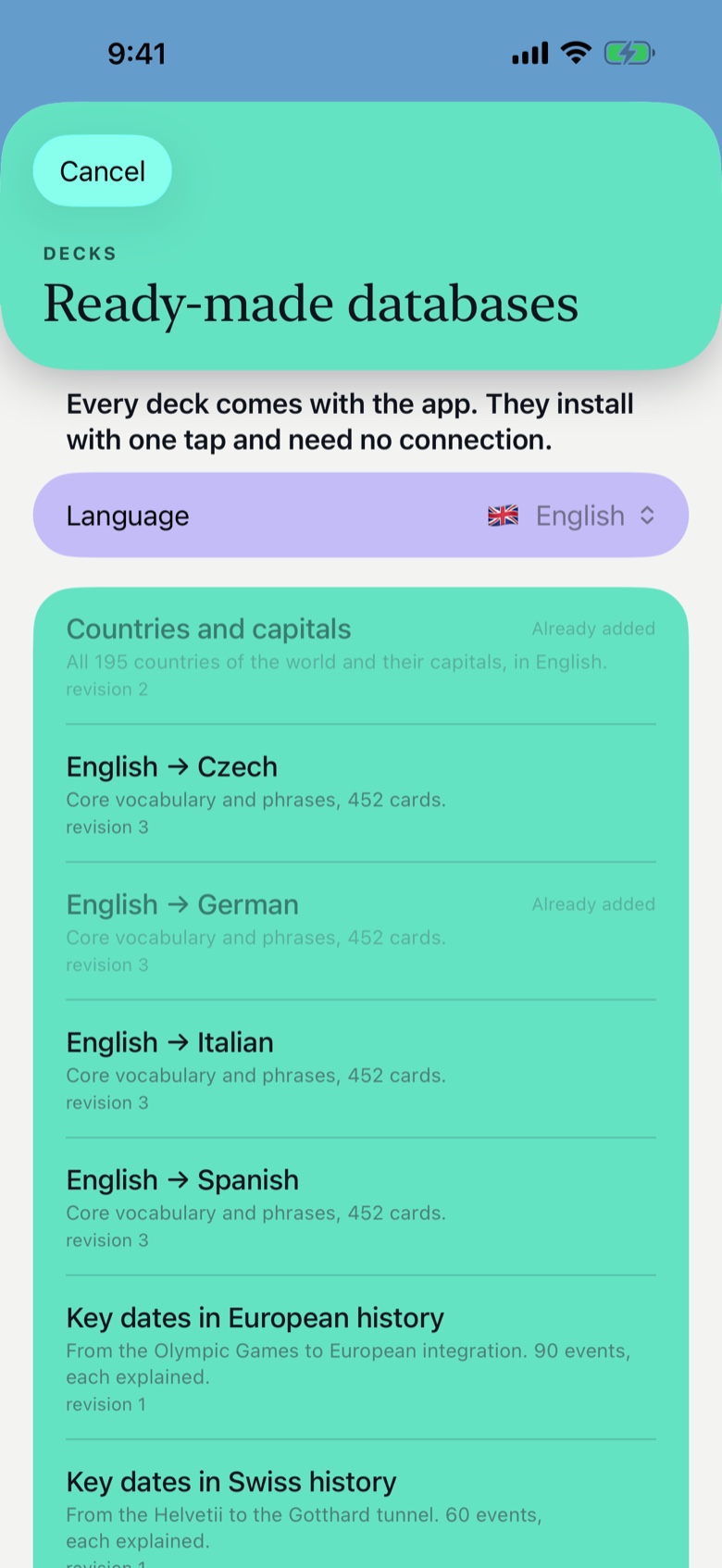
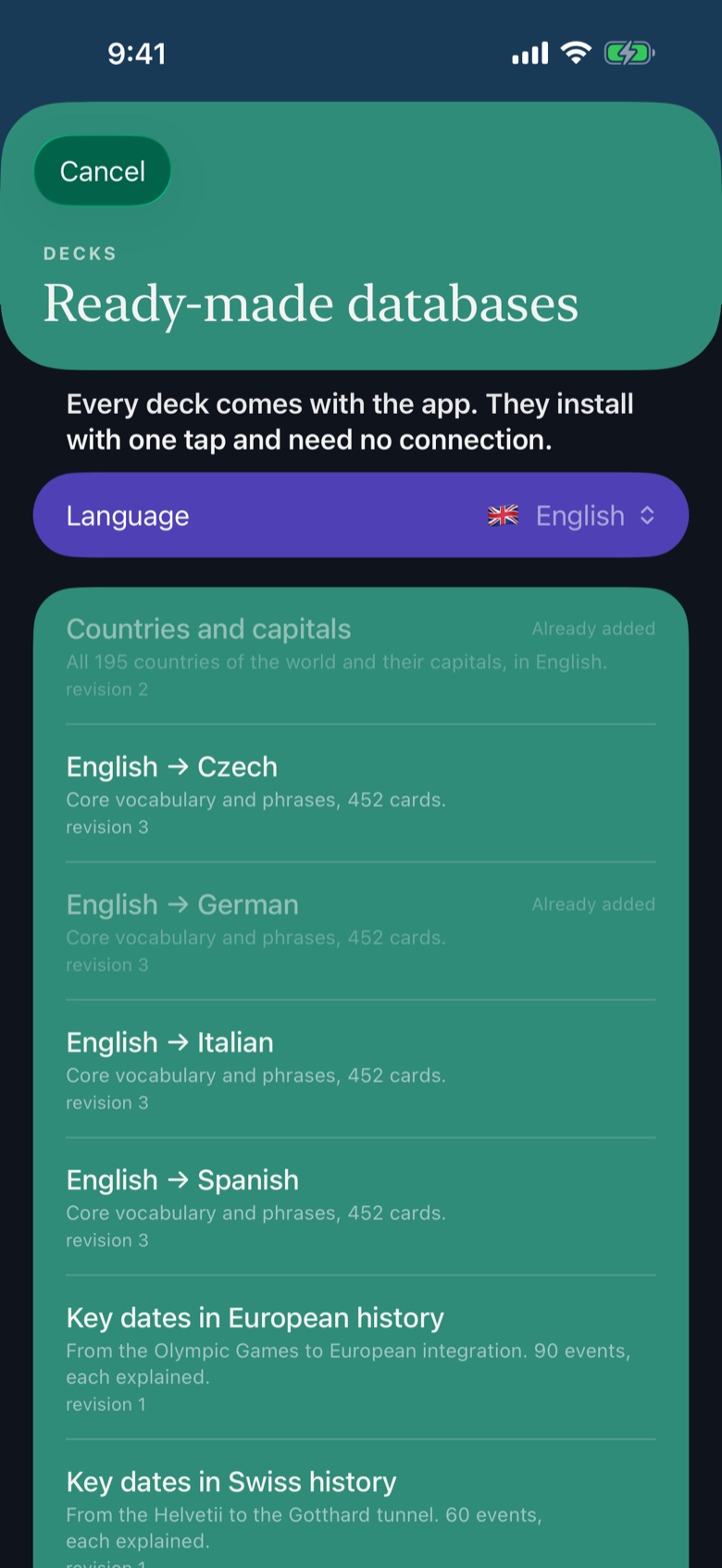
The app carries the decks inside it, all but flags and fish, which are over two megabytes because of their pictures. So you need not go anywhere: open Ready-made decks — in the middle of the screen when your library is empty, otherwise below the list. Before anything is written the app asks whether you really want those cards. They need no connection and skip the import wizard entirely.
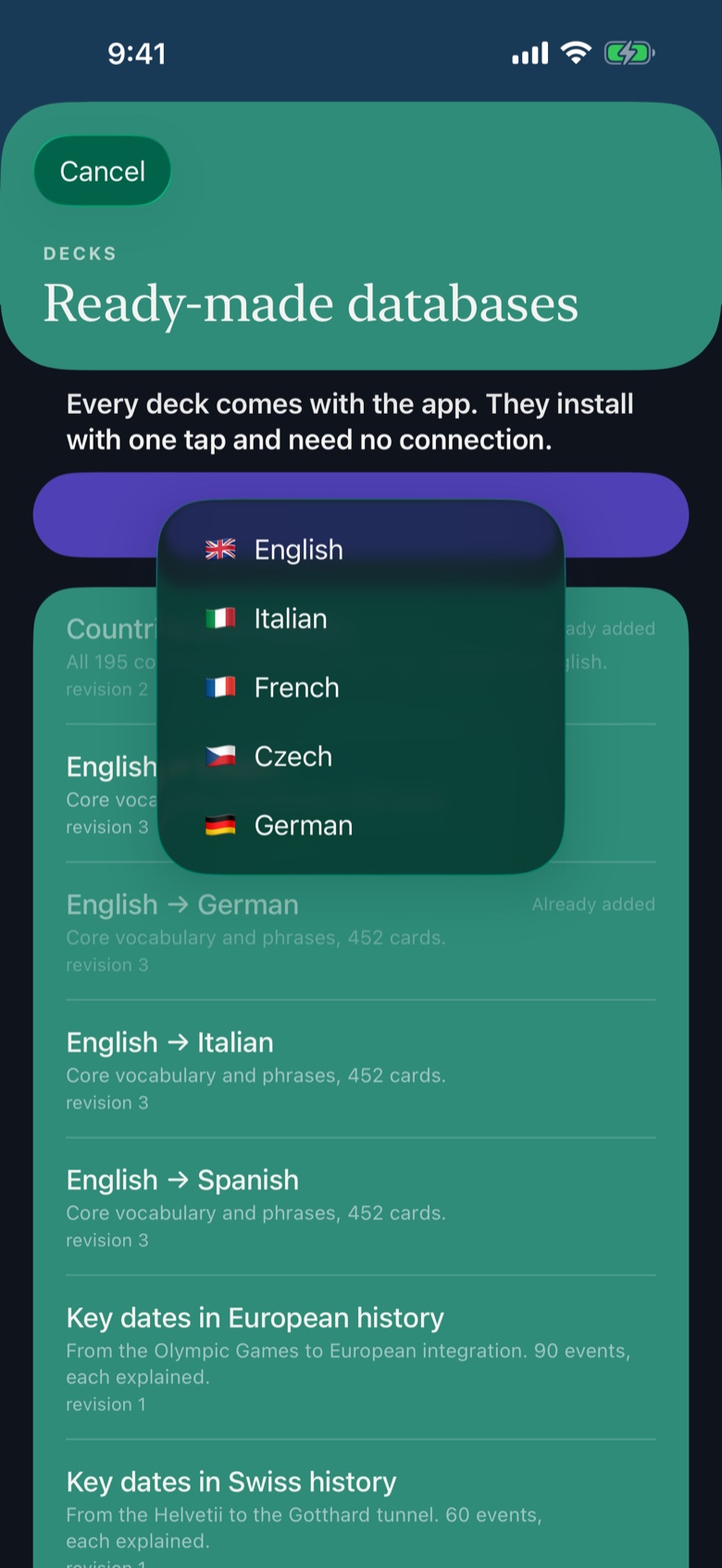
A language switch with a flag sits at the top. It picks by the language of the content, not of the interface — if you are learning Italian, the Italian cards are there in an English interface too.
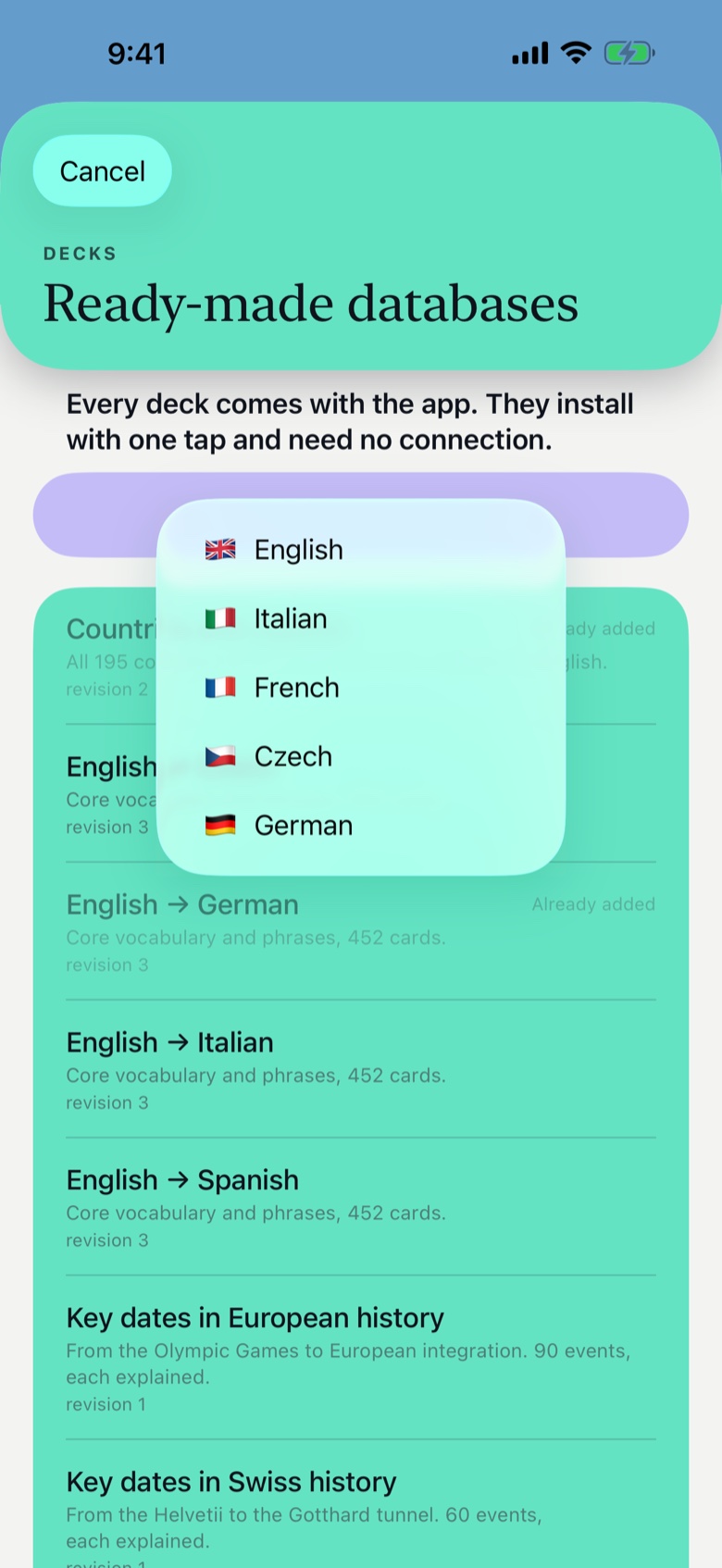
Every deck shows its card count and its revision. That is how you tell whether the one on the website is newer than the one in the app.
So what is the website for? For updates, and for whatever did not exist yet when the app shipped. The app updates through the App Store, the content through the website — neither waits for the other.
When a correction comes out
Decks carry a revision. Find a typo in one, tell us, and we fix it and publish a new revision — which you download exactly the way you downloaded the first one.
You do not get a new empty deck. The correction goes into yours, with everything you have learned in it. Before anything is written, the confirmation tells you:
- which revision you are going from and to,
- how many cards will be corrected and how many added,
- how many stay exactly as they are,
- how many are missing from the new version,
- and that your progress and answer history stay.
Those numbers are not copied out of the file — the app works them out by comparing with what you have. Download a file you already have and it says outright that there is nothing new in it.
When a correction ships with the app
A new version of the app carries corrected databases too. When you have one in an older revision than the bundled one, the app tells you:
- below the list of decks, Ready-made decks says *Corrected versions available* and how many,
- in the list that database sits at the top, and instead of “Already added” it says Corrected version available: revision 2 · yours: revision 1.
Tapping it opens the same confirmation as a file from the website: which revision you go from and to, what changed, how many cards get corrected, and that what you have learned stays. Nothing is written until you tap Update.
An update never happens on its own. The app does not remind you about an archived database.
When you edited a card yourself
This is the one place an update cannot decide for you. The app cannot tell whether a card differs because we fixed a mistake or because you changed it — the file does not say what the card used to hold.
So the confirmation lists how many cards differ and lets you go through them. For each you see your version and the one from the file, with only the differences highlighted, and you choose between Take new and Keep mine. You can also decide for the whole deck at once.
The default is to take the new one — that is what an update is for.
A card keeps its identity even when its text is corrected. That is why a fixed typo lands on the card you have been learning instead of creating a second one beside it.
When the new version leaves a card out
The author may drop a card in a new revision, a duplicate for example. But you can also add your own cards to a ready-made deck, and those cannot be in the author's file. The app cannot tell the two apart, so it asks you.
The confirmation says how many cards are missing from the new version, and Choose what to do with them lists them. You decide for all of them at once:
- Keep — the default. The cards stay as they are, including what you have learned.
- Retire — the cards move to the category Retired and leave your tests. Their history stays, so you can bring them back.
- Delete — the cards are deleted, including what you have learned.
Nothing is removed unless you choose so. Cards you are learning are marked learning in the list, so you know what you would lose.
Once the update is applied you see the result: how many cards were corrected, how many added, how many stayed as they were and how many were retired or deleted.
When you find a mistake
Tell us. The card detail has Report a mistake in its menu — it opens a window where you write what is wrong, and the app prepares an e-mail from it. It attaches which deck and which card, identifiers included, so we can find it even after the text has been corrected.
You see the whole message beforehand and you send it. The app never sends anything on its own.
If you are at a computer
Save the file and send it to your phone however you normally would — AirDrop, mail, Files on iCloud. It works the same on the other end: tap and confirm.
What is inside the file
The extension is .memorate and it is an ordinary ZIP. Rename it to .zip, unpack it, and you will find two readable files: manifest.json with a short description and content.json with every card.
That is deliberate. Your data should stay yours and readable without the app.
Your own data
If you would rather build a set yourself, you need nothing special — a spreadsheet and CSV import will do. A finished deck can then be exported and passed on.