 Memorate
A side of a card is text, or an image — never both. No HTML, no mixing. Extra fields and the note stay text even on a card with an image.
Text is still the main road. Images are for content that text cannot describe: flags, maps, road signs, anatomy, chemical structures.
Images arrived in the same release as the flags deck. Decks you already have are unaffected — they behave exactly as before.
What a card with an image looks like
In the card list an image side shows as a thumbnail. The aspect ratio is kept, so flags cannot be confused with one another: the Swiss flag is a square, the Nepalese one is not even a rectangle.
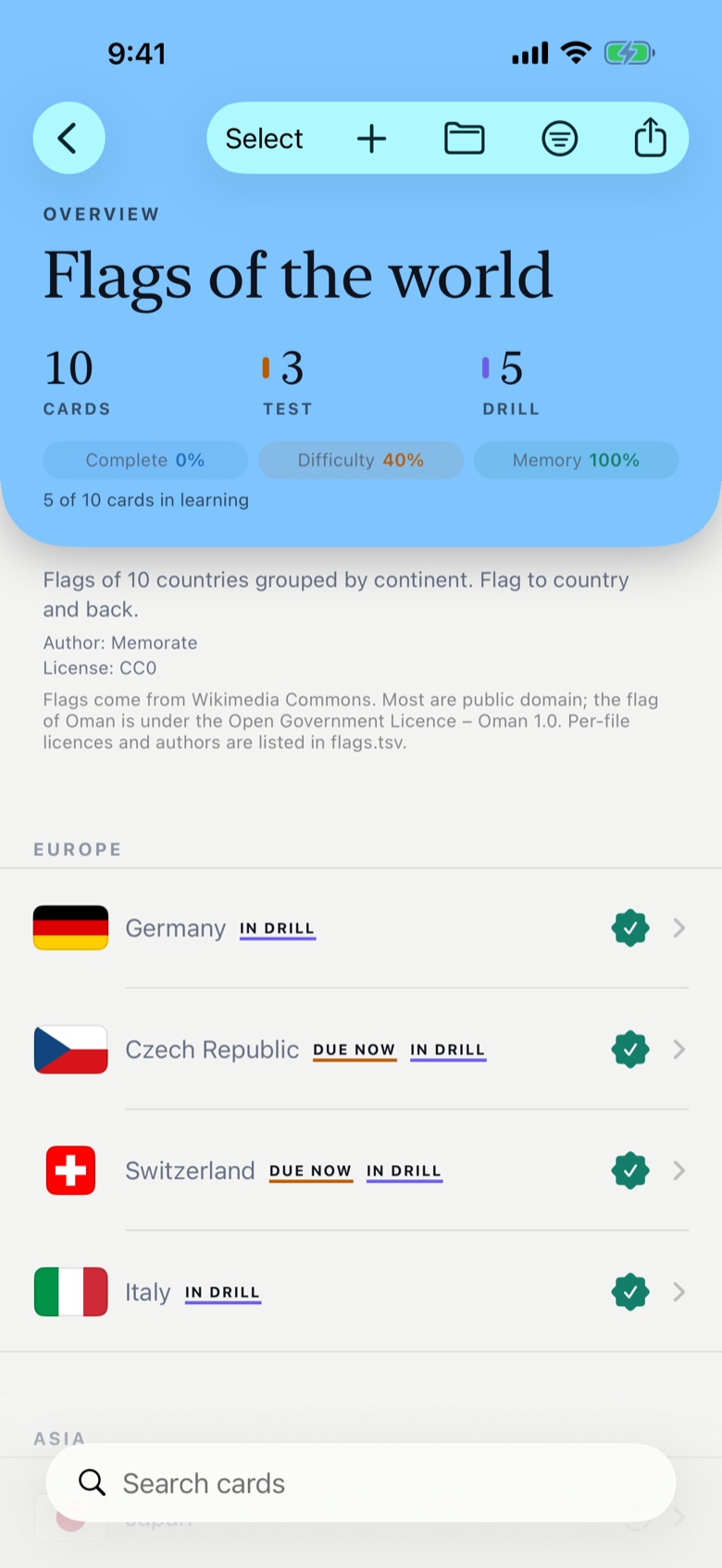
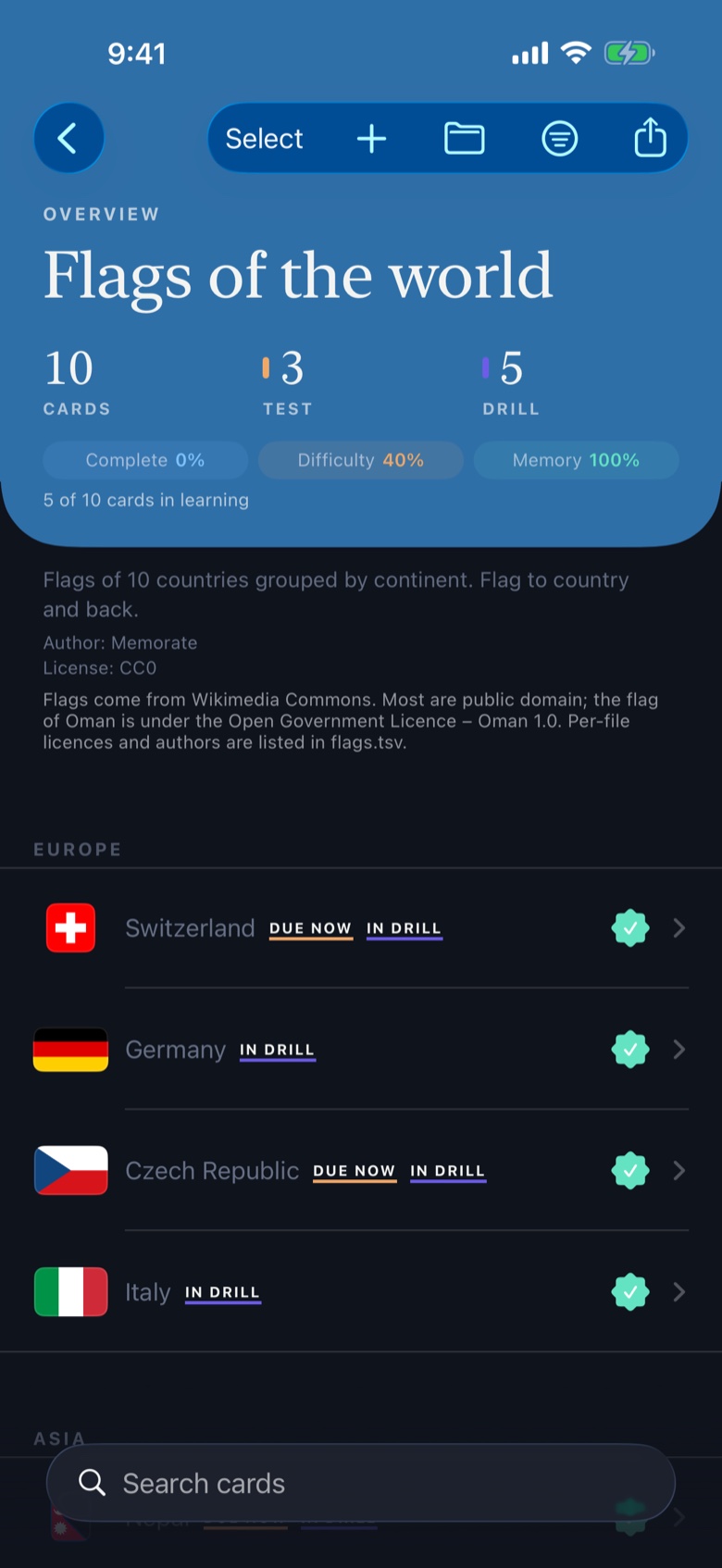
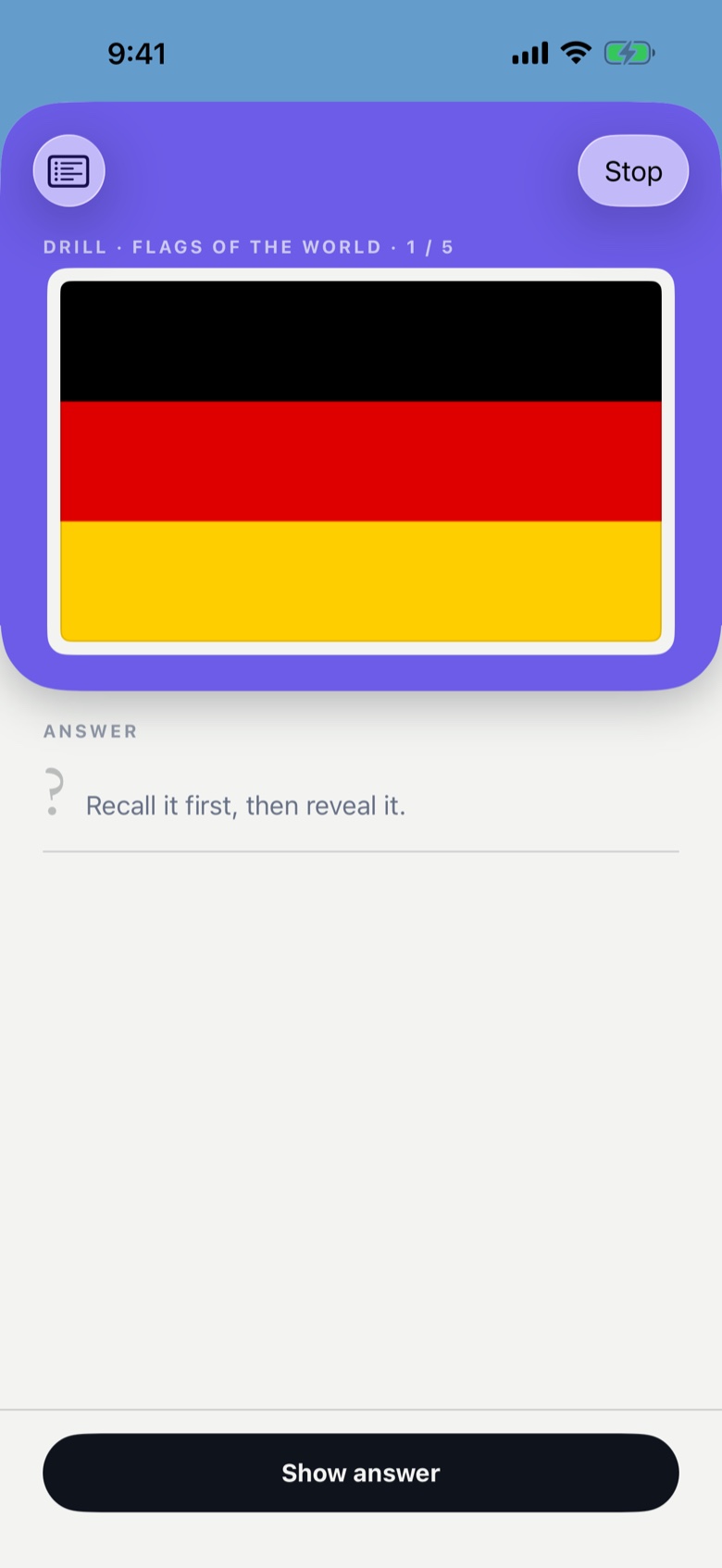
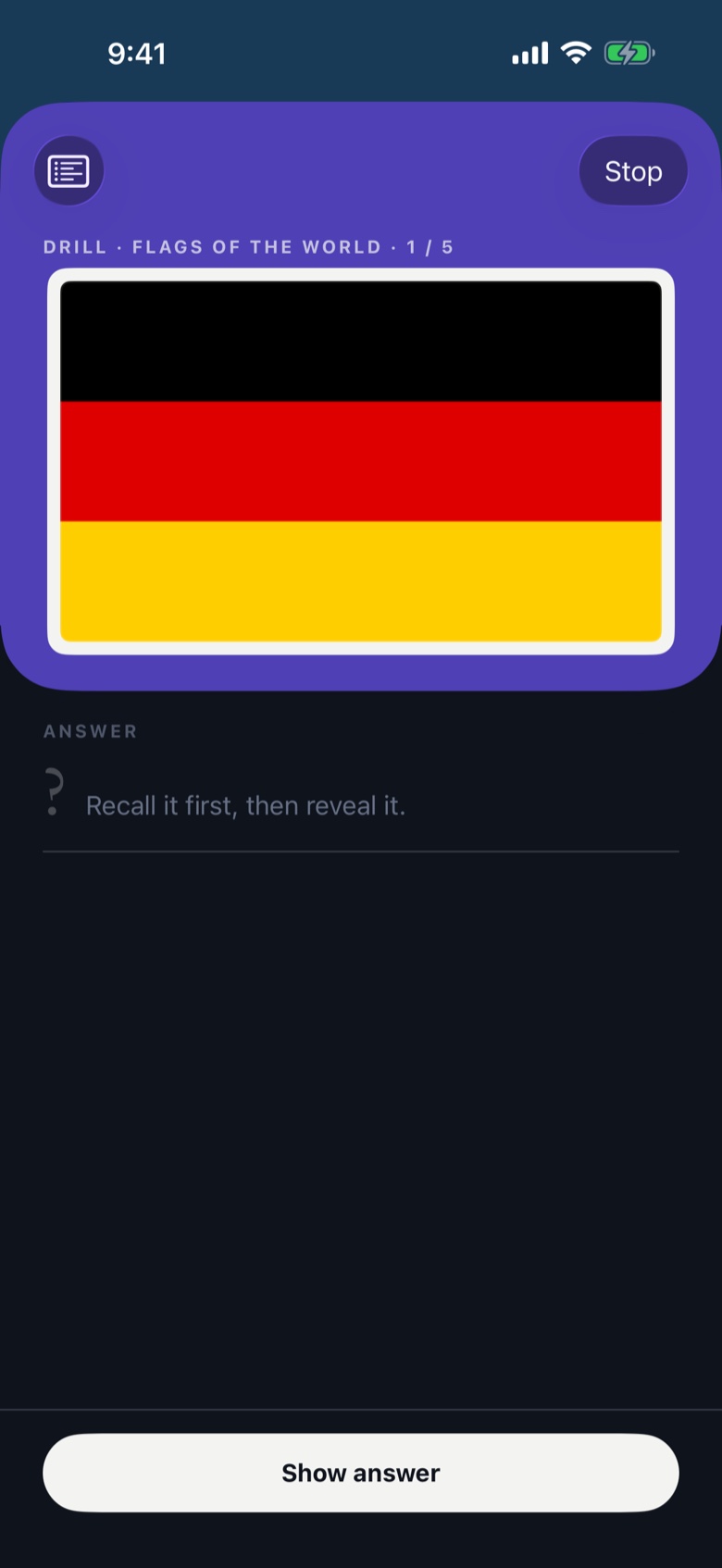
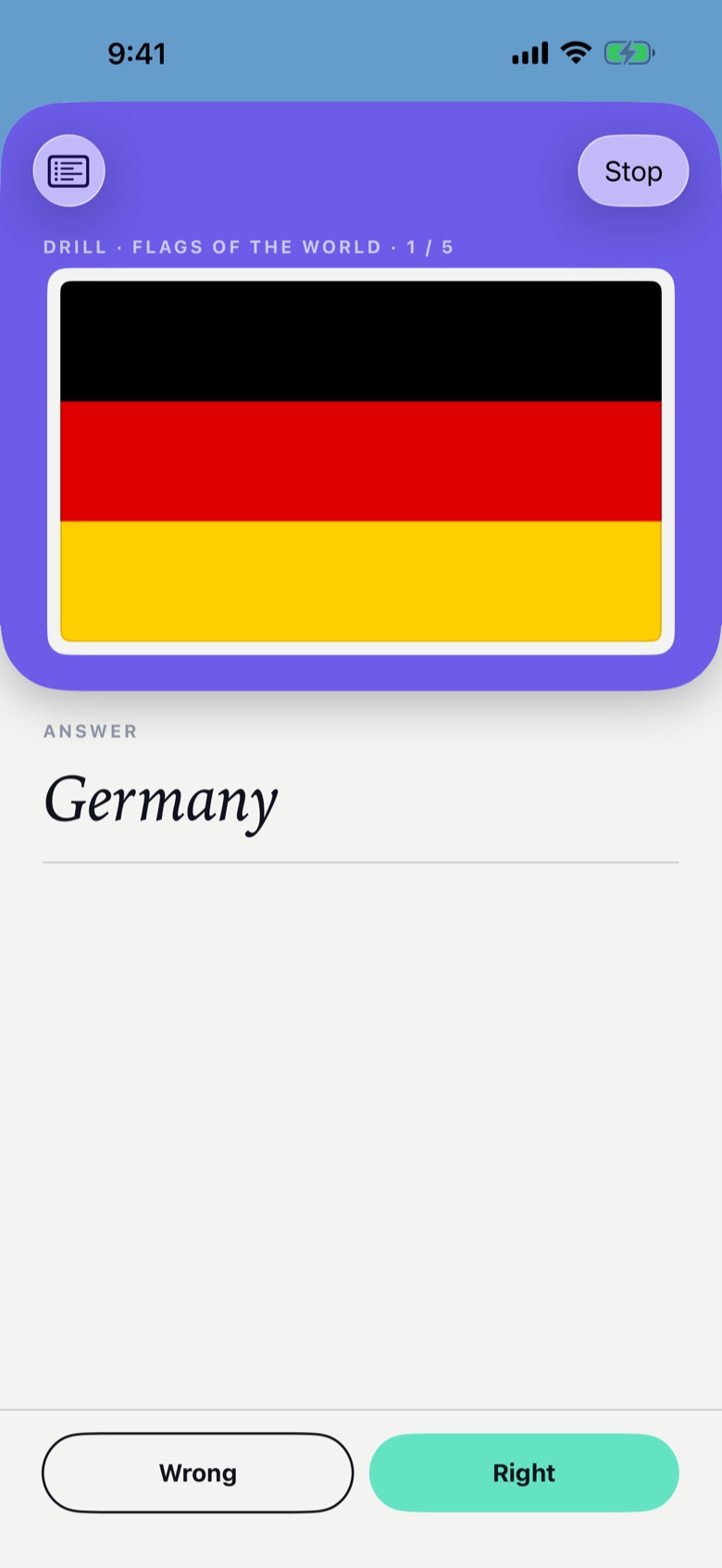
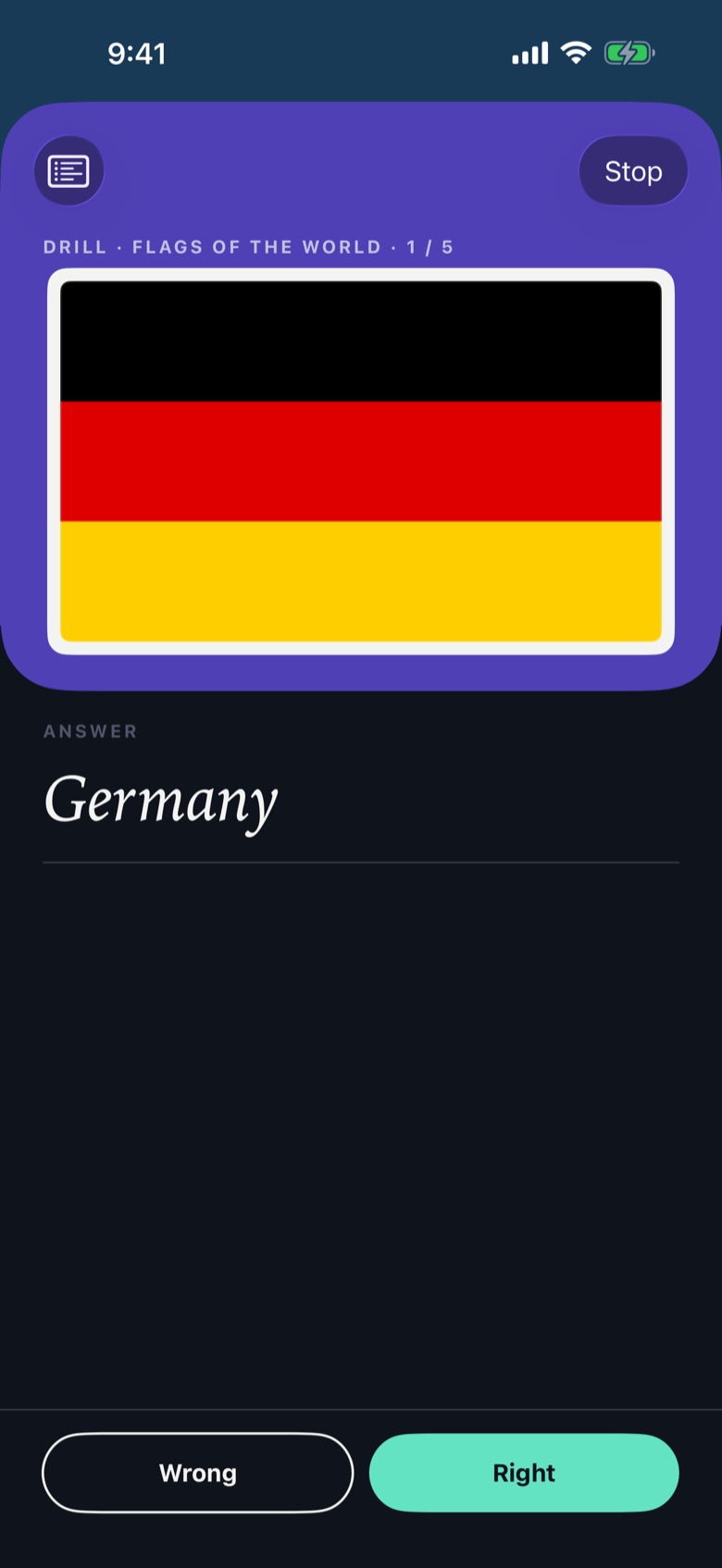
In a test and in a drill an image is simply the question. Nothing else changes — the same grading, the same scheduling.
Inserting an image
In the card editor there is an Insert image row under both the question and the answer. Tapping it asks where to take it from:
- From Photos — your photo library. The photo may live in iCloud; the app waits for it to download.
- From Files — anything you can reach through Files: iCloud Drive, downloads, another app.
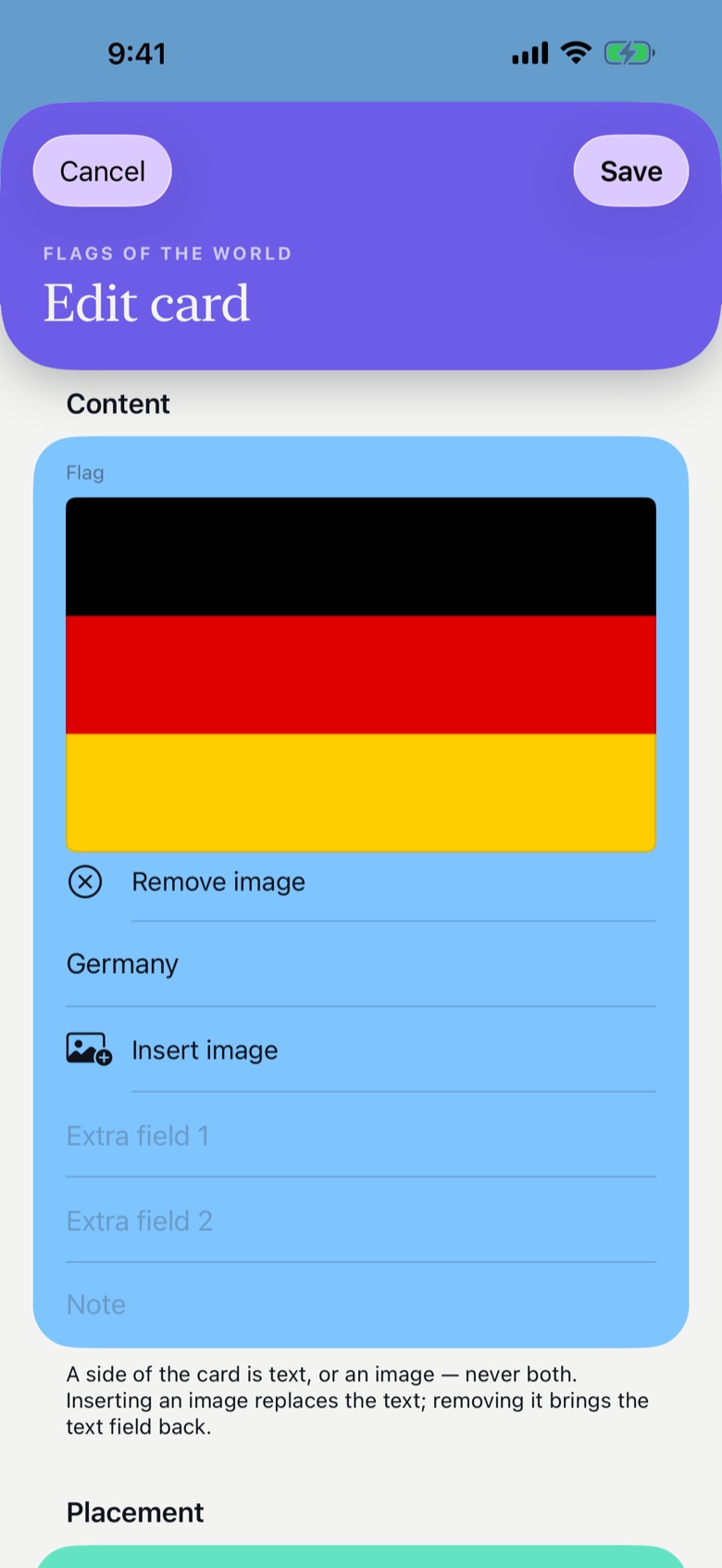
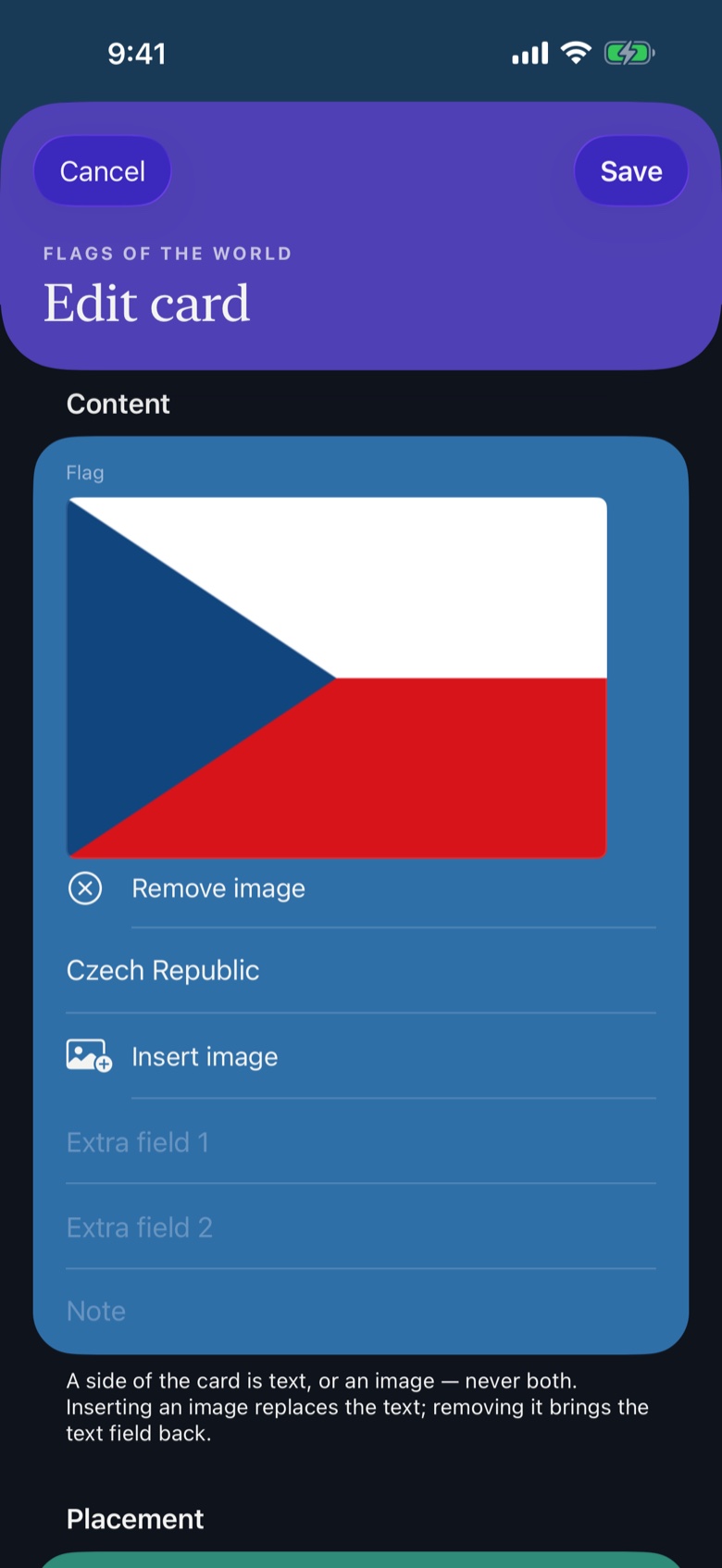
Inserting an image throws away that side's text. That is deliberate: if the text stayed hidden under the image, removing the image would bring back something you had considered deleted. Removing the image brings the text field back — empty.
What happens to the image
A photo from an iPhone is twelve megapixels and four megabytes. On a card it is drawn at most 340 points tall, so on insertion it is scaled down to 1024 pixels on its longer side. The rest would only be synchronised through iCloud and take up room in your backups.
The format follows transparency: images with transparency stay PNG, everything else is stored as JPEG. A translucent logo saved as JPEG would turn into a black rectangle.
Images are addressed by a fingerprint of their content. The same image on two cards takes up room once — and so does the same flag in the Czech, English and German decks.
Image size
How large an image is drawn is set per deck, not per card. The deck editor gains an Image size section with a slider and a live preview.
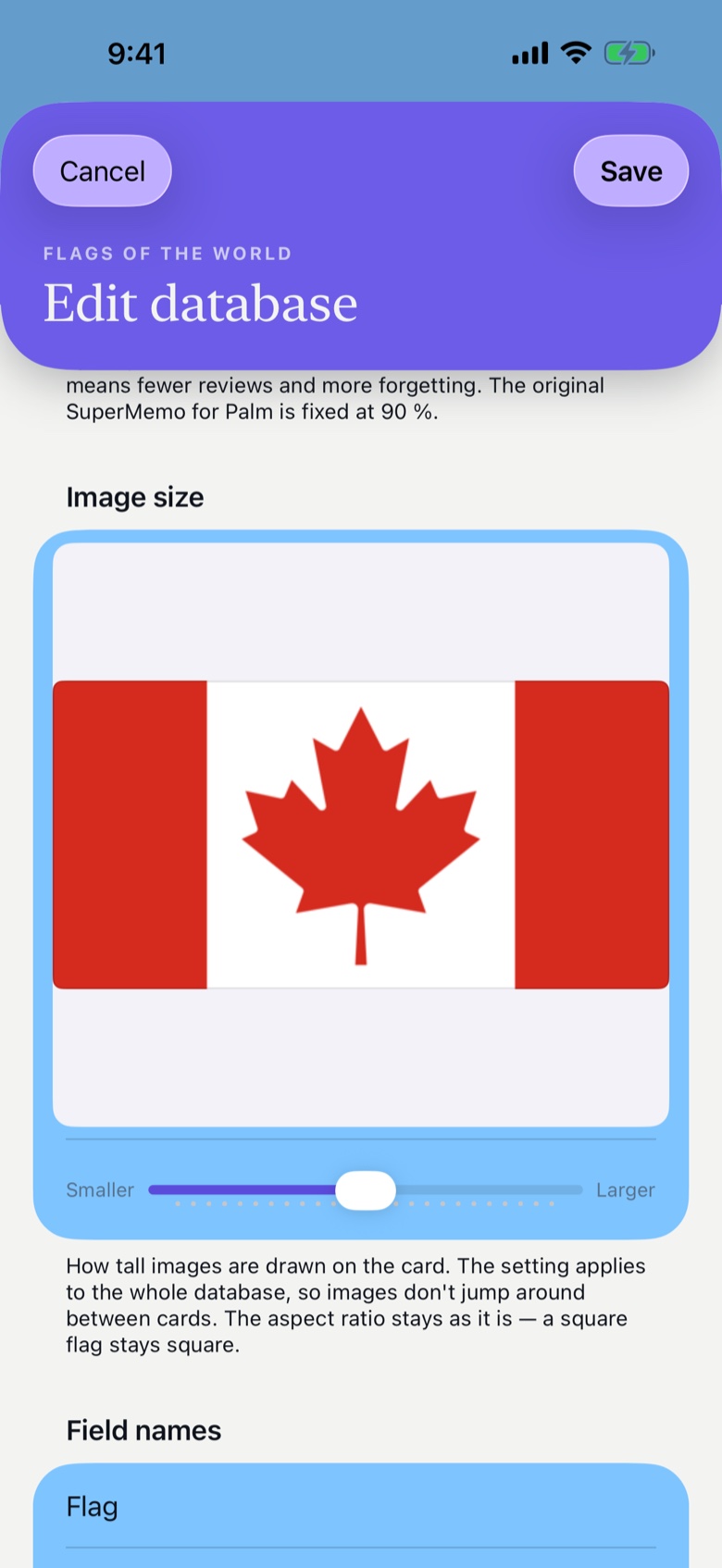
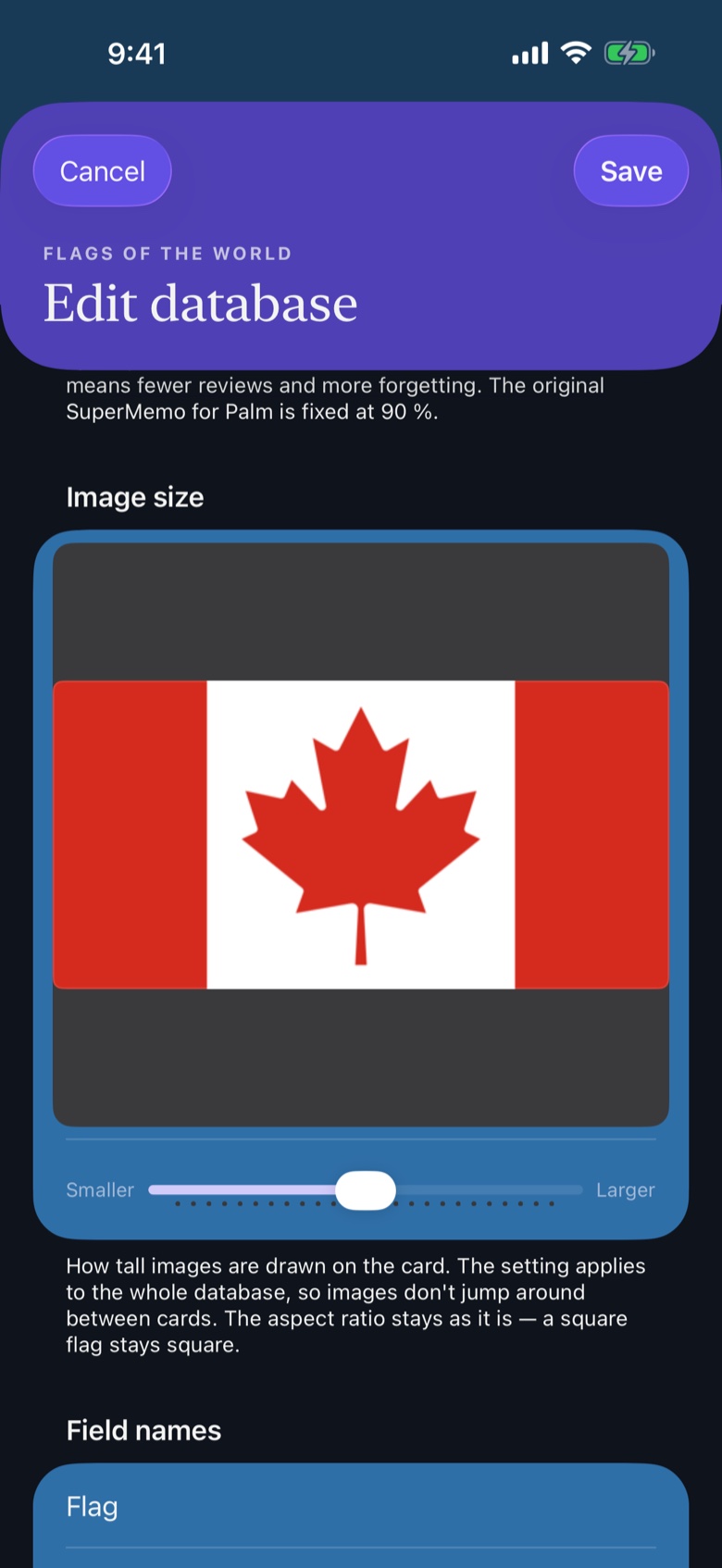
The section only appears for decks that actually have images — there is nothing to enlarge in a text deck.
Why per deck:
- A deck is looked at as a whole. If every card had its own size, images would jump around between cards.
- One value for everything would not do. What is the right size for a flag is the wrong size for an anatomy slide.
The aspect ratio is kept. The height changes, the shape does not — a square flag stays square.
It is a ceiling, not a size. On a small iPhone the image in the test shrinks below the set value so the answer fits under it — scrolling to the answer is worse than a smaller picture.
Images and sharing
Images travel with the deck. Inside a .memorate file they sit next to the content in a media/ folder, so sharing and backups carry them.
It does mean decks with images are noticeably larger. The flags deck is 195 cards and 2.4 MB, where a text deck of the same size is tens of kilobytes. That is why the flags are not bundled into the app and are downloaded from the web instead, where the size is visible before you commit to it.
If a deck ever imports with empty questions, import the same file again. The app notices the images are missing and fills them in — the deck is not duplicated and your progress stays.
Where images are not
- Extra fields and the note are always text.