 Memorate
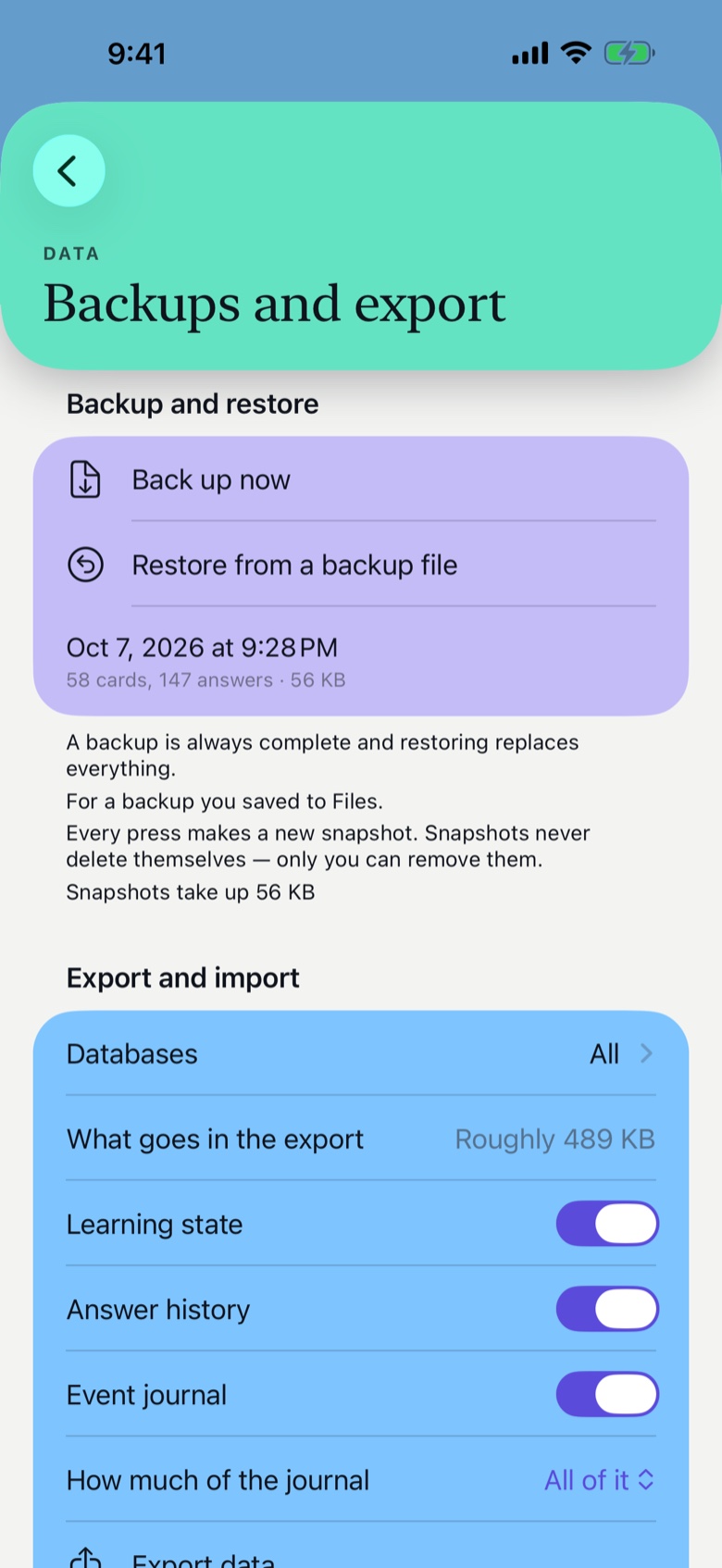
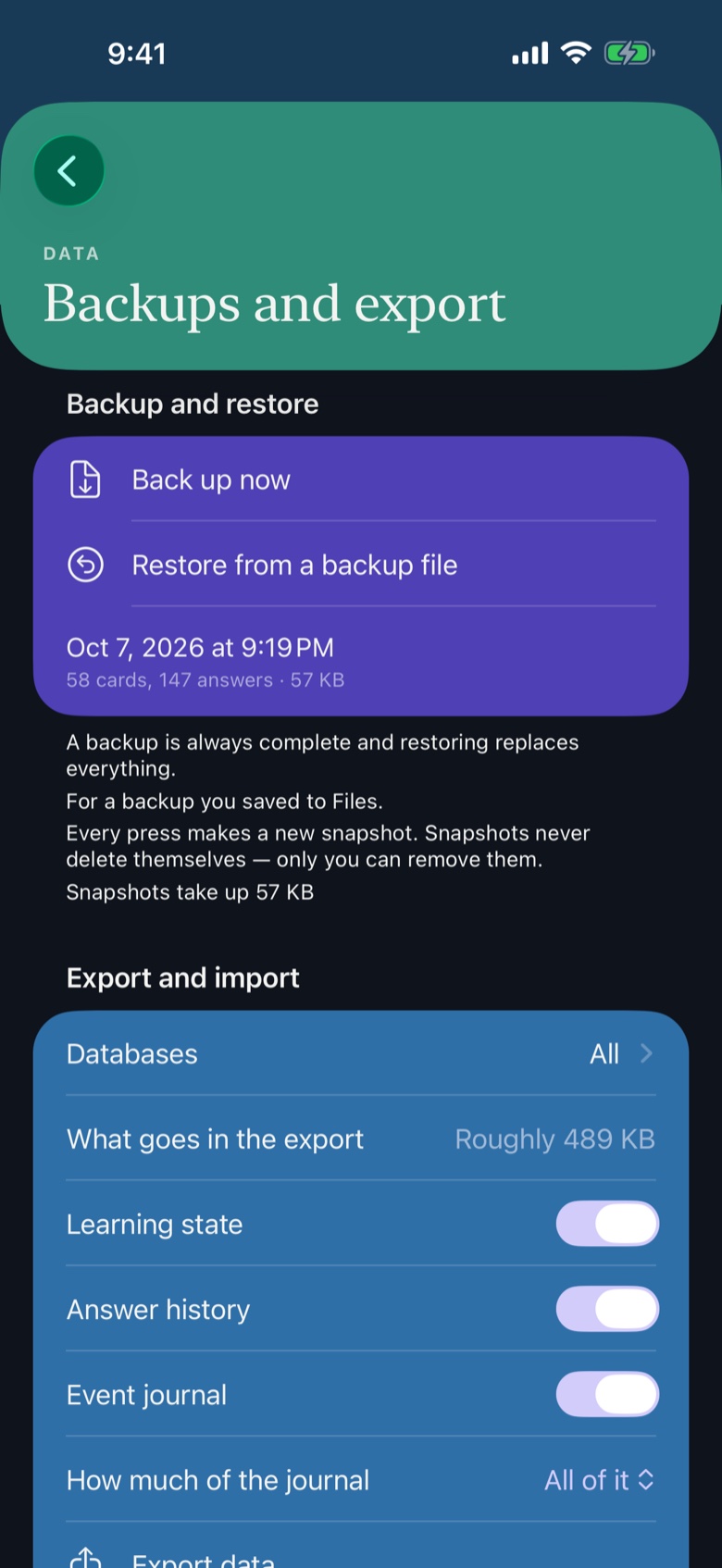
 has no server and no account sync. That makes backups all the more important. The Backups and export screen is in settings.
Snapshots
Back up now makes a complete snapshot inside the app. Every press makes a new one.
Each snapshot shows its date, the number of cards and answers, and its size. At the bottom is the total space snapshots take up.
Once a week a snapshot is made on its own, shortly after the app starts — whenever the newest snapshot, manual ones included, is older than a week. It appears in the list marked Made automatically. The last four automatic ones are kept; older ones are cleaned up. None is made over an empty library.
Manual snapshots never delete themselves. Only you can remove them — swipe a row left. Deleting asks for confirmation.
Restoring from a snapshot
Swiping a row right reveals Restore. Restoring replaces everything that is in the app right now.
A snapshot of the current state is made automatically before a restore, so a restore can be taken back. It appears in the list marked Made automatically.
Exporting to a file
Export data produces a readable file you can take with you — to Files, iCloud Drive, anywhere. Use it to move to another device, to share, or to work with the data yourself.
What goes in the file
Three switches decide the contents, and a picker appears under the third one:
| Switch | What it adds |
|---|---|
| Learning state | difficulty, stability, due dates |
| Answer history | individual tests and drills |
| Event journal | the complete record of everything that happened |
| How much of the journal | None / Last month / Last year / All of it |
Above the switches sit two rows: a Databases selector, which reads All until you pick specific ones, and What goes in the export with a size estimate that moves as you flip the switches.
Deselecting every database is not the same as All. With none selected there is nothing to export and the app says so in red.
If you are only sharing the file with someone, leave everything off. Then it carries just the cards and the settings — nothing personal.
Authorship and licence
Whatever a deck has filled in under Sharing and authorship — author, their link, licence and source — is written into the file too. You fill it in from the deck editor, and pre-fill it in settings under Signing exports.
All of it is optional, and an empty field is not written at all — not even an empty key stays behind. The app never fills anything in by itself, neither the device name nor an account: this is personal data leaving the device, so only what you typed belongs there.
Importing a file
Import a file adds content from a backup. It merges by card identity, so it:
- never removes anything,
- never overwrites the progress you have here.
When it finishes it reports how many cards were added and how many updated.
Restoring from a file
Restore from a backup file is for a backup saved in Files. Unlike an import, it replaces everything — and, just like with a snapshot, a snapshot of the current state is made first.
This is mainly for moving to a new phone or after a reinstall.
A routine that works
- Before anything big (a reset, deleting a deck, importing thousands of cards), tap Back up now. It is one tap.
- Every now and then run Export data with everything on and save the file somewhere off the phone.
- Delete old snapshots occasionally so they do not eat space.
Snapshots live inside the app. Delete the app and they go with it. A real backup is a file stored somewhere else.